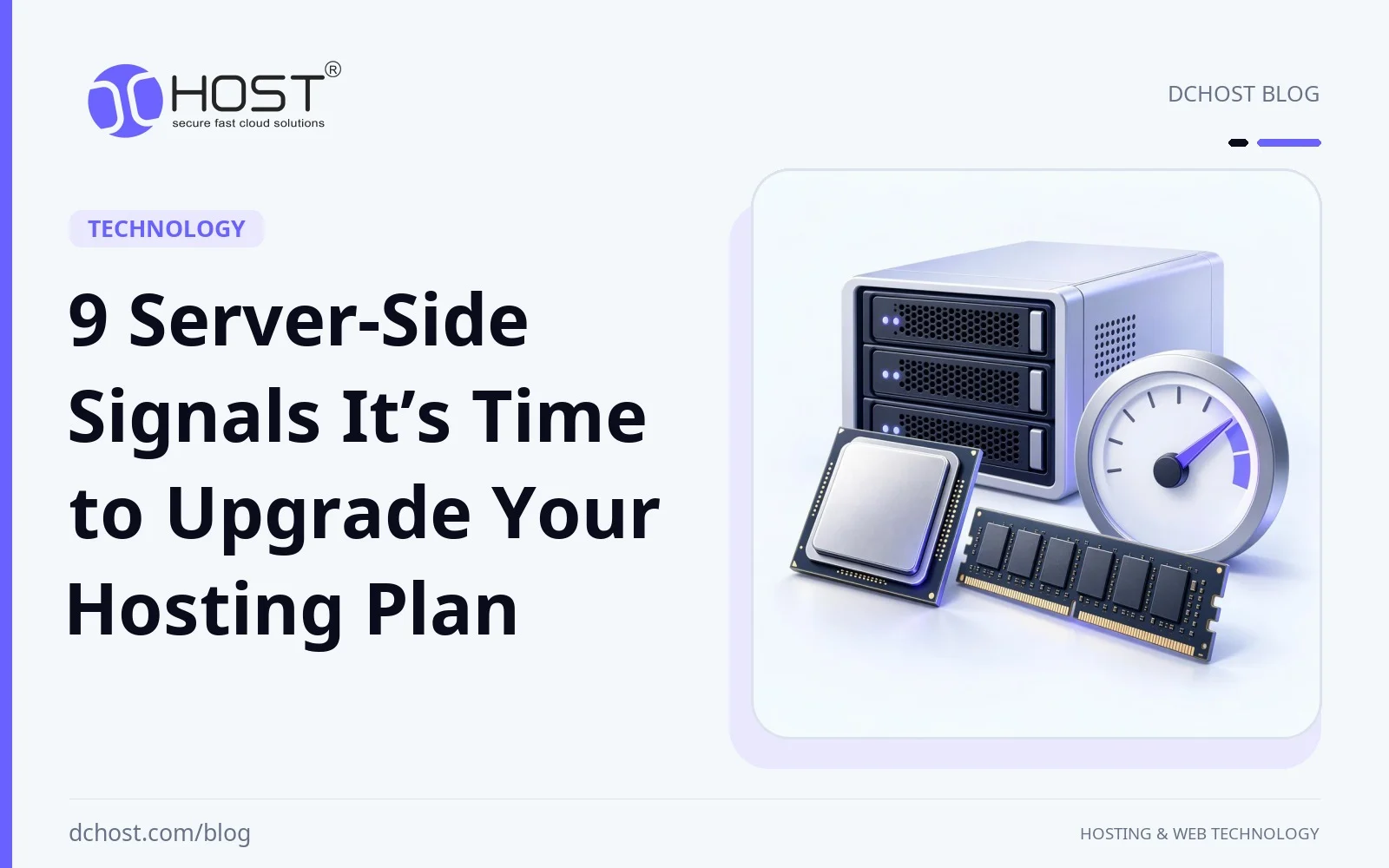
Hosting plans often meet a site’s needs at the beginning: low traffic, simple code, small database. The problems start later, when growth on the business side is not matched by growth on the server side. Pages feel heavier, background jobs take longer, and monitoring graphs quietly creep upward. The key question is simple: how do you know, from server-side data, that it is really time to upgrade your hosting plan?
In this article, we will look at nine clear signals coming from your server – CPU, RAM, disk, bandwidth, errors, and security constraints – that can indicate you are approaching the limits of your current environment. We will focus on symptoms you can actually measure (load averages, iowait, 5xx errors, queue delay) and discuss when the right answer is code optimization versus scaling up or out. These signals are relevant across shared hosting, VPS, dedicated servers and colocation.
Performance Signals: Your Server Is Working Too Hard
1. CPU Load Stays High Even During “Normal” Traffic
CPU is the first place we look when a site feels slow or “heavy”. Brief CPU spikes are not necessarily a problem. Consistently high CPU usage during normal traffic warrants investigation, especially when it coincides with slower responses or growing queues.
Typical symptoms include:
- Load average close to or above the number of vCPUs for long periods (for example, 3–4 load on a 2 vCPU VPS for hours). On Linux, load also includes tasks in uninterruptible sleep, often waiting for I/O, so compare it with CPU utilization before diagnosing a CPU shortage.
- PHP-FPM or web server processes frequently at 80–100% CPU. Check the tool’s percentage scale: a process at 100% may represent one busy logical CPU, not saturation of the whole server.
- Slow admin pages in WordPress, PrestaShop, Magento or custom panels, even without campaigns running.
Before blaming the hosting plan, it is worth checking for badly written queries, missing indexes and heavy plugins. But if your application is reasonably optimized and sustained CPU saturation is causing delays, more compute capacity may be warranted. Options include:
- Upgrading shared hosting to a VPS with sufficient CPU capacity; check whether its vCPUs share host CPU time or have a dedicated allocation.
- Moving from a small VPS to a larger VPS with more vCPUs.
- For heavy workloads, moving to a dedicated server with full physical cores.
If you want a deeper dive on how to match vCPU to your use case, you can review our guide on how much CPU, RAM and bandwidth a website really needs.
2. Memory (RAM) Pressure and Frequent Swapping
RAM issues are more subtle than CPU, but just as important. When memory is under pressure and swap is configured, the operating system may move memory pages to disk. Sustained swapping can severely degrade performance, especially on busy PHP or database servers; without sufficient reclaimable memory or swap, allocation failures or OOM kills can occur.
Server-side signals to investigate for memory pressure:
- Swap usage steadily increasing alongside low available memory and sustained swap-in/out activity. Allocated swap alone does not prove current memory pressure.
- OOM (Out Of Memory) kills appearing in system logs; services like MySQL or PHP-FPM being restarted unexpectedly.
- cPanel or DirectAdmin reporting “Memory limit reached” or similar resource-limit errors.
On shared hosting, you will often see errors like “Resource Limit Reached”. We covered in detail what these mean in our article on understanding cPanel resource limits and fixing the ‘Resource Limit Reached’ error. If you regularly hit RAM caps after addressing memory leaks and excessive worker counts, your site’s working memory needs may exceed the plan’s allowance.
On VPS or dedicated servers, we recommend watching:
- Memory usage from tools like
free -h,top,htop, or hosting panel graphs. - Swap usage and swap in/out rates.
- Database buffer pool hit ratios and cache usage to ensure services have enough RAM to work efficiently.
If keeping memory pressure under control requires repeatedly killing processes, investigate leaks and excessive concurrency first. Upgrade RAM when the legitimate workload still exceeds available memory after those issues are addressed.
3. Slow TTFB and Backend Response Times
Users do not complain about CPU or memory; they complain that “the site is slow”. One important user-facing metric is Time To First Byte (TTFB) – the time between starting a request and receiving the first response byte. Browser-measured TTFB includes network and connection overhead as well as server processing, so it is not a purely server-side metric.
When hosting limits are reached, TTFB typically increases because:
- PHP-FPM pools are saturated and requests wait in the queue.
- Database queries are slow due to CPU, RAM or disk bottlenecks.
- Concurrent connection limits on shared hosting are throttling your requests.
A quick check with browser dev tools or monitoring tools will show if TTFB is frequently above 500–700 ms for simple pages. Treat these as investigation thresholds, not hosting-capacity tests: compare like-for-like pages, cache states and measurement locations with your baseline and server-side timings.
We have a full breakdown of server-side causes of slow TTFB and how to fix them in our article fixing high TTFB on WordPress and PHP sites. Sometimes you can tune PHP-FPM, OPcache, Redis and MySQL to gain a lot of performance without upgrading. For dynamic e‑commerce or membership pages, sustained uncached TTFB above 1 second can also warrant investigation. But if TTFB remains high after tuning, correlate it with resource saturation and backend timings before attributing it to insufficient hardware; network latency, application work and external services can also cause delays.
Capacity Signals: You’re Hitting the Limits of Disk and Bandwidth
4. Disk Usage Near 100% or High Disk I/O Wait
SSD storage, including NVMe SSDs, can be much faster than spinning HDDs, though hosting storage types vary. But it is still a finite resource, and both capacity (GB) and I/O performance (IOPS, latency) matter.
Server-side signals that your disk layer is under pressure:
- Disk usage regularly above 90–95%, leaving limited headroom for logs, backups or temporary files; assess remaining bytes and growth rate as well as the percentage.
- High
iowaitintoporiostatoutput – idle CPU time while I/O is outstanding. Check device latency and utilization to establish whether storage is the bottleneck. - Database queries that were fast becoming slow as tables grow larger.
- File operations (image uploads, backup creation) taking much longer than before.
Running with nearly full disks is risky: backups can fail, MySQL writes can fail or the service can stop, and new log entries may not be written. Review retention and safely removable data first. If expected growth still leaves too little headroom, expand storage; seek faster storage when I/O measurements also show a performance bottleneck.
If your site is media-heavy (photography, magazines, e‑commerce with many product images), you can also gain a lot by pairing your hosting upgrade with a smarter media strategy. Our guide on hosting for image‑heavy websites, disk, CDN and WebP/AVIF strategy explains how offloading and compression can extend the life of your current plan – and make your next upgrade even more effective.
5. Bandwidth Caps, Throttling, or 509 Errors
Most modern hosting plans include generous bandwidth, but high-traffic sites, file downloads, large images or video can still push limits. You will usually see one of these signals:
- Control panel showing bandwidth usage close to the monthly quota.
- Temporary throttling by the provider when you exceed fair use policies.
- The nonstandard HTTP status 509 “Bandwidth Limit Exceeded”, used by some providers, or similar provider-specific errors.
When this happens occasionally during big campaigns, CDN caching can reduce origin traffic for cacheable content. Origin-side caching mainly reduces processing work and does not by itself reduce bytes sent to visitors. Our article on hosting scaling checklists for traffic spikes and big campaigns covers how to prepare in advance so you do not have surprises on launch day.
But if bandwidth caps or throttling are becoming regular, it is a classic signal that your plan is undersized. The upgrade path depends on your architecture:
- For small sites: move to a higher shared hosting tier with more monthly traffic.
- For growing projects: choose a VPS with a sufficient monthly transfer allowance and network rate limit; confirm whether port capacity is shared or dedicated.
- For large platforms and media properties: move to dedicated servers or colocation with higher commit bandwidth and possibly a separate CDN strategy.
Reliability Signals: Stability Is Starting to Suffer
6. Frequent 5xx Errors and Connection Timeouts
HTTP 5xx errors (500, 502, 503, 504) indicate failures on the server or upstream path, not necessarily insufficient capacity. Even isolated 500 errors after a deploy deserve investigation. When errors recur under load, correlate them with application and proxy logs, resource metrics and dependency health to distinguish capacity limits from configuration problems, application bugs or upstream failures.
Common server-side causes include:
- PHP-FPM max children reached; new requests are dropped or queued too long.
- Web server (Apache, Nginx, LiteSpeed) reaching connection or worker limits.
- Database refusing connections (too many concurrent connections, lack of resources).
- Upstream timeouts in Nginx or load balancers because backend response times are too high.
Logs will usually show errors like “server reached MaxRequestWorkers”, “upstream timed out”, or “Too many connections” from MySQL. If these only happen during rare traffic spikes, you might tune configuration or caching. But if they appear daily at your usual peak times, investigate configuration and application bottlenecks alongside resource usage. Persistent errors tied to exhausted resources after tuning can indicate that you have outgrown the current hosting tier.
7. Cron Jobs, Queues, and Background Workers Falling Behind
Modern sites rely heavily on background processing: email queues, order processing, report generation, cache warmup, search indexing, and more. On small plans, these tasks may be fine at the beginning. Over time, as data and traffic grow, they can start to lag behind.
Typical signals include:
- Queued jobs (for example, Laravel/Horizon, WooCommerce scheduled actions) piling up and taking hours to clear.
- Cron jobs not finishing before the next run, leading to overlapping processes.
- Search indexes or analytics jobs running only late at night to avoid crashing the site.
If profiling rules out application bottlenecks and worker configuration issues, check whether CPU, RAM or disk I/O limits prevent web traffic and background queues from running together. When resource contention is confirmed, options include:
- Upgrading to a larger VPS and dedicating some vCPUs to queue workers.
- On larger stacks, splitting background workers onto a separate VPS or dedicated server.
When your business depends on timely order processing, notifications or reporting, this is not just a performance issue – it becomes an operational and customer-experience risk.
Security & Isolation Signals: You Need More Control
Shared hosting is ideal for small sites and early stages. But by design, you are sharing CPU, disk and network with other users. Providers isolate accounts, but “noisy neighbour” effects can still occur, and server-wide resource limits may affect multiple accounts.
Signals that shared hosting is no longer the right layer:
- Performance varying strongly during the day, unrelated to your own traffic.
- Global restrictions on max PHP workers, memory or processes, even on higher shared tiers.
- Inability to install required system packages, custom extensions or services.
- Security policies that prevent you from using advanced tools (e.g. custom WAF rules, system firewalls) that your project now requires.
When you hit these walls, you are not just upgrading for “more power”; you are upgrading for isolation and control. When evaluating a VPS from dchost.com, confirm the chosen plan’s resource guarantees, root access and scope of infrastructure management. For very large projects or compliance-sensitive environments, dedicated servers or colocation can provide physical isolation, but physical isolation alone does not establish compliance or security.
A VPS or dedicated server is not automatically a managed service. With an unmanaged service, you or your administrator may be responsible for OS and panel installation, updates, hardening, monitoring, backups and recovery. For managed services, confirm which tasks are included, their fees and intervention limits rather than assuming everything is covered. Clarify migration responsibilities as well. With colocation, also plan who maintains the hardware and performs on-site work.
9. You Can’t Implement the Security Controls You Need
As your site or application grows, so does its security profile: more admins, more customers, more sensitive data. At some point, you may need:
- System-level firewall rules (nftables, iptables) and rate limiting.
- Advanced WAF tuning with ModSecurity and custom OWASP CRS rules.
- mTLS, custom TLS policies, or strict HTTP security headers across multiple services.
- Centralized logging, SIEM integration, or custom backup encryption workflows.
On basic shared hosting, some of these controls may be standardized for the whole server, while others may be configurable per site or available through the provider. If required controls are unavailable, consider a plan or environment that supports them.
If attacks repeatedly disrupt availability, investigate the attack type, security rules and network constraints before treating this as a capacity upgrade. Blocked requests in WAF or rate-limit logs may mean protection is working; correlate them with actual service disruption. Confirm the availability, scope and limits of DDoS protection, WAF services and attack-time restrictions with the provider for both the current and proposed plans. A more powerful server alone does not solve DDoS attacks; select protection appropriate to the attack type.
We have covered many of these topics – from step‑by‑step VPS server hardening to detailed HTTP security header best practices. The common theme is simple: if your hosting environment does not allow you to implement the controls your project requires, that is a server-side signal that your plan is now too limited for your risk profile.
How to Confirm It’s Really a Hosting Limit (Not Just Bad Code)
Before deciding to upgrade, it is important to distinguish between two broad categories of problems:
- Application inefficiencies: unoptimized SQL queries, heavy plugins, memory leaks, inefficient loops, too many HTTP requests.
- Hard hosting limits: vCPU/RAM caps, disk I/O saturation, max processes, concurrency limits, bandwidth quotas.
A practical diagnostic approach:
Check access and plan support first. Server-level monitoring requires suitable SSH or monitoring permissions and installed tools. Slow-query logging and PHP-FPM, OPcache or Redis changes require the relevant administrative access and package support. Shared hosting and reseller users may not have these permissions; a VPS does not mean every tool is preinstalled. If access is unavailable, ask the provider for account-level usage, limit events and latency records covering the affected period, and confirm which diagnostic or configuration changes they support. Do not confuse whole-server utilization with your own account’s consumption.
- Profile the application: Enable slow query logs in MySQL/MariaDB, inspect logs, use Xdebug or application-level profilers in staging to identify the heaviest requests.
- Test targeted optimizations: Based on profiling, test indexes, plugin replacements and caching layers (OPcache, object cache, page caching) in staging before rollout; compress images where useful. Keep personalized responses out of shared page caches.
- Measure again under similar traffic: If CPU/RAM/disk graphs are still hitting ceilings even after optimizations, the root cause is likely insufficient resources.
- Run a controlled load test if possible: Use a representative staging environment where possible, stay within your provider’s testing policy, and simulate expected concurrent users while watching server metrics. Set stop thresholds to avoid disrupting live traffic.
When profiling and resource metrics show that an optimized application still exhausts CPU, RAM or disk I/O capacity during everyday peaks, an upgrade may be worthwhile. Compare its cost with the expected operational benefit, then measure again to check whether it relieved the bottleneck.
Once you recognize the server-side signals, the next question is “Upgrade to what?”. There is no single correct answer, but some patterns appear again and again.
Consider moving from shared hosting to a VPS with dchost.com when:
- You constantly hit hosting-account resource limits shown in cPanel (CPU, RAM, I/O, entry processes).
- You need custom software, services or firewall rules that shared hosting cannot provide.
- You host multiple active sites (agency, freelancer, SaaS) and need control over their isolation. A single VPS does not automatically isolate those sites from one another; that requires an appropriate account or service separation design.
We have a detailed checklist on moving from shared hosting to a VPS with zero downtime, including DNS, backups, and cutover strategies.
From Smaller VPS to Larger VPS or Dedicated Server
Upgrade within VPS tiers when:
- CPU load and RAM usage are consistently high, but you are happy with the underlying virtualization and network.
- Your workload is still relatively simple (web + database + cache on one node) and scaling vertically is straightforward.
Move to dedicated servers (or colocation if you bring your own hardware) when:
- You require full physical isolation for compliance, performance or security reasons.
- Your workload uses a very high amount of CPU, RAM or disk I/O that makes more sense on dedicated hardware.
- You plan multi‑server architectures (separate database, cache, search, queues) and want predictable performance across them.
If you are unsure which path fits, our article on dedicated server vs VPS and which one fits your business walks through concrete use cases and trade‑offs.
Thinking Beyond One Server: Horizontal Scaling
Upgrades are not limited to “bigger single servers”. As projects grow, one possible architecture is:
- One or more VPS instances or dedicated servers run the application (PHP, Node.js, etc.).
- A separate server handles the database (MySQL/PostgreSQL).
- Another handles caching (Redis), search, or background queues.
- When multiple app servers are used, a load balancer or reverse proxy distributes traffic among them.
These patterns can apply to WooCommerce, Laravel, multi‑tenant SaaS and high‑traffic news sites. Splitting services across servers separates workloads; adding app-server replicas scales the application tier horizontally. If a larger single server still cannot meet measured demand, evaluate these options against further vertical scaling. The choice depends on the bottleneck and the application’s ability to distribute work and manage shared state; the nine signals do not all call for horizontal scaling.
Bringing It All Together
Upgrading your hosting plan is not about chasing bigger numbers on a price list; it is about listening to what your server is already telling you. High CPU load that never calms down, RAM constantly under pressure, disks near 100% capacity, recurring 5xx errors, bandwidth caps, noisy neighbours and security limitations – these can indicate hosting constraints, but symptoms such as high load and recurring 5xx errors need investigation before attributing them to hosting limits.
The healthy approach is methodical: profile and optimize your application, enable smart caching and media strategies, and then look honestly at your graphs and logs. If one or more of these signals persist after reasonable tuning and point to a confirmed hosting constraint, consider an upgrade that addresses that constraint. Whether that is a larger shared plan, a VPS, a dedicated server or colocation at dchost.com, the goal is the same: give your application enough headroom to grow smoothly.
If you would like help interpreting your current metrics or planning an upgrade path, contact our team at dchost.com. Share your current resource usage, traffic profile and future plans to discuss a hosting environment suited to your needs and budget before the next slowdown forces your hand.