
Quick summary
SSE (Server-Sent Events) sends updates to your browser over an HTTP connection that stays open. If updates arrive in a batch, the application or a reverse proxy-a server that forwards requests to the application-may be holding data before sending it on. This is called buffering. Compression and delays in updating the screen can cause similar symptoms, so first find where the delay begins.
- Compare direct and Nginx streams using curl, a command-line HTTP client.
- Check that each event ends with a blank line and the application sends it promptly.
- Change buffering only for the SSE route, not the whole site.
- Compare arrival intervals in the browser and through your site’s public address too.
Do live notifications appear together after a pause? Does an AI response arrive all at once instead of streaming? SSE lets you display updates as they arrive, but generating data, delivering it and updating the screen are separate stages. Checking each stage helps you avoid changing a setting that is not causing the delay.
In a hypothetical example scenario, you’ll use a Python application to compare direct access with access through Nginx. You’ll identify whether either path delays events, adjust only the SSE route when needed and check event timing with a fresh connection rather than change server-wide settings.
Understand SSE streaming and set up the example environment
SSE (Server-Sent Events) lets a server send events to your browser over an HTTP response that stays open. You can display live notifications or parts of an AI response without refreshing the page. Generating data and delivering it to the browser are separate stages, though. Comparing direct access to the application with access through Nginx helps you find where events are waiting.
A simple SSE event uses a data: field and ends with a blank line. If the application holds output in a write buffer-an area of memory where data waits before being sent-it may need a flush call to release that data. The reverse proxy, which forwards requests to the application, can also collect response chunks before sending them onward. You will check these two layers separately. A single write call does not guarantee that the data arrives in one network packet or that the browser updates the screen immediately.
Example scenario
For this hypothetical example, you will use an Ubuntu 24.04 server with no production traffic and permission to run administrator commands with sudo. Python will generate 10 timestamped events, one per second, for each request. Nginx will provide a second route to the same application. Both listening addresses created for the example will accept only local connections, and you will run the tests in the server’s terminal.
Install the packages and start the event-producing application
In the server’s terminal, run the following commands to install Python, Nginx and curl, a command-line tool for inspecting HTTP responses. These commands use packages from the Ubuntu 24.04 repositories. The example assumes ports 9000 and 8080 are free and the demonstration files created below do not already exist. If those files already exist, make copies before overwriting them.
sudo apt update
sudo apt install -y python3 nginx curl
Wait for installation to finish and the command prompt to return. Installing Nginx may also start its default site; the local-only addresses used by this demonstration do not restrict any other Nginx listening addresses.
In the same terminal, use the commands below to create /tmp/sse-demo.py and start the application. Python’s standard-library ThreadingHTTPServer handles connections in separate threads, allowing requests to run independently. The two line breaks at the end of each event tell the browser that the event is complete. The wfile.flush() call releases any data waiting in the application’s write buffer.
cat > /tmp/sse-demo.py <<'PY'
from datetime import datetime, timezone
from http.server import BaseHTTPRequestHandler, ThreadingHTTPServer
import time


class Handler(BaseHTTPRequestHandler):
    def do_GET(self):
        if self.path != "/events":
            self.send_error(404)
            return

        self.send_response(200)
        self.send_header("Content-Type", "text/event-stream")
        self.send_header("Cache-Control", "no-cache")
        self.end_headers()

        try:
            for number in range(1, 11):
                stamp = datetime.now(timezone.utc).isoformat()
                event = f"data: {number} {stamp}\n\n"
                self.wfile.write(event.encode("utf-8"))
                self.wfile.flush()
                time.sleep(1)
        except (BrokenPipeError, ConnectionResetError):
            pass


print("SSE uygulaması 127.0.0.1:9000 üzerinde hazır", flush=True)
ThreadingHTTPServer(("127.0.0.1", 9000), Handler).serve_forever()
PY
python3 /tmp/sse-demo.py
The script prints a Turkish message meaning “SSE application ready on 127.0.0.1:9000.” If no error follows and the command prompt does not return, the application is running in the foreground. Leave this terminal session open so it can handle requests during the next tests; events are sent to requesting clients, not printed here. When you finish the demonstration, stop the application with Ctrl+C. This temporary service is not designed for production use.
Open a second route through Nginx
Open a second terminal session on the server and leave Python running in the first. Nginx will forward requests to the same application, so you can check whether passing through the proxy changes event delivery. Following the approach for setting up an Nginx reverse proxy, you will send only one specific route to the application. Run the command below in the second terminal to create the demonstration configuration. It forwards /events requests to Python without changing the URL path.
In this example, Nginx listens on port 8080 at 127.0.0.1, an address accessible only from within the server. This limits access to the demonstration route, not to all of Nginx: the configuration does not disable the default site that package installation may enable or any other Nginx listening addresses. As noted in the setup, copy any existing demonstration file before overwriting it.
sudo tee /etc/nginx/conf.d/sse-demo.conf > /dev/null <<'NGINX'
server {
    listen 127.0.0.1:8080;
    server_name localhost;

    location = /events {
        proxy_pass http://127.0.0.1:9000;
        proxy_buffering on;
    }
}
NGINX
sudo nginx -t
The final command checks the Nginx configuration without loading it. If the output reports that the syntax is OK and the test is successful, run the following commands to start Nginx and load the new configuration. If the test reports an error, correct the indicated file and line, then repeat the test before continuing.
sudo systemctl start nginx
sudo systemctl reload nginx
Once these commands complete without errors, requests from the server to port 9000 reach Python directly, while requests to port 8080 reach the same application through Nginx. The initial configuration keeps proxy_buffering on so you can compare delivery before disabling buffering. This setting alone does not guarantee that events will arrive in a batch. The next streaming test will show whether the two routes deliver events at different intervals.
Use curl to locate where events are delayed
Compare direct access to the application with access through Nginx to find which route delays events. Leave Python running in the first terminal, and run the following tests in sequence in the server’s second terminal. Observe the stream before changing settings so you can target the layer that needs attention.
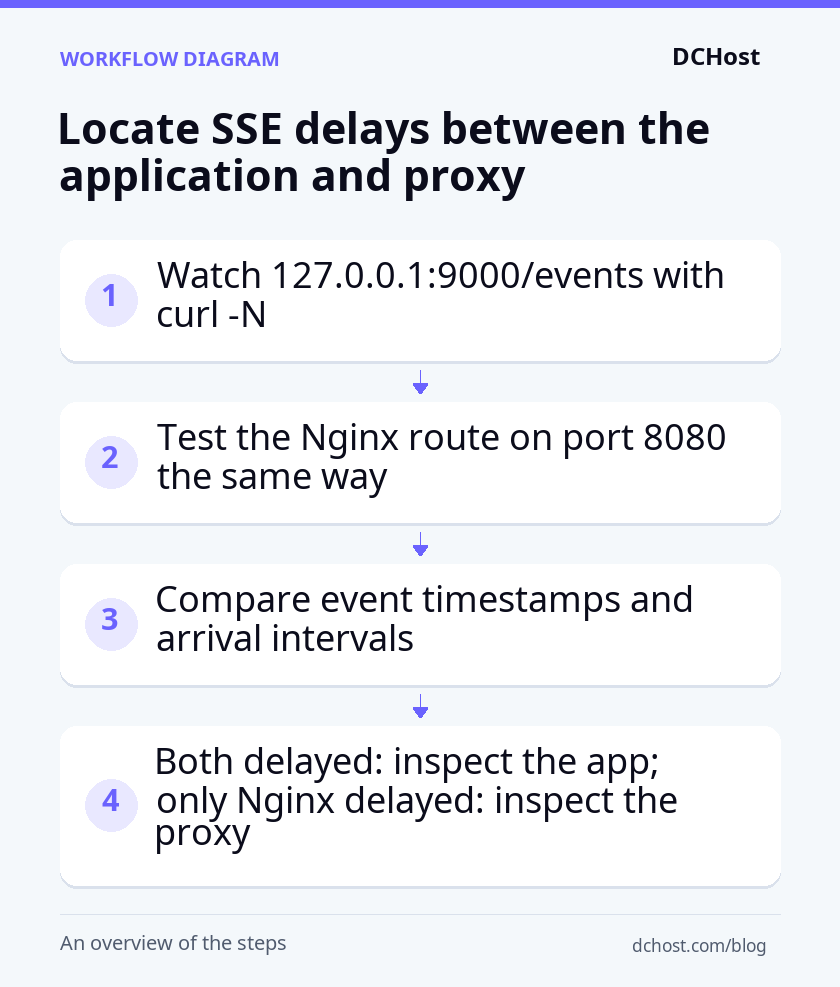
Compare direct application and Nginx streams
The first command connects directly to the Python application. -N disables curl’s own output buffering, so curl displays received data without holding it in its output buffer. It does not change buffering in the application or Nginx. -i displays response headers, while -sS hides the progress meter but keeps error messages visible.
curl -sS -N -i http://127.0.0.1:9000/eventsIn this hypothetical example, you should see 10 data: lines arriving roughly one second apart, with blank lines between them. Once the stream finishes and the terminal prompt returns, run the same test on port 8080, where Nginx listens:
curl -sS -N -i http://127.0.0.1:8080/eventsThe timestamps inside the events show their generation time, not when they reach curl. If the timestamps advance by one second but the lines appear together, data has been held somewhere between generation and display. These requests produce separate event sequences, so compare the intervals at which lines arrive rather than expecting matching timestamps.
Verify arrival times and event boundaries
If the arrival intervals are hard to judge on screen, record timestamped curl traces in the same terminal. A trace records the request and response data exchanged during the connection. --trace-ascii writes that data to a readable file; --trace-time adds timing information to each record. The following commands overwrite the two trace files if they already exist.
curl -sS -N --trace-time --trace-ascii /tmp/sse-direct.trace http://127.0.0.1:9000/events
curl -sS -N --trace-time --trace-ascii /tmp/sse-nginx.trace http://127.0.0.1:8080/events
Open the files with less /tmp/sse-direct.trace and less /tmp/sse-nginx.trace, pressing q to exit each view. Recv data marks records where curl received data. Examine the times of these records alongside the events they contain, then compare arrival intervals across the two routes. One record can contain multiple events, and an event can span multiple records; trace records are not event boundaries. This example contains no sensitive data, but traces from real applications can store authentication information and response content, so do not share them without checking their contents.
In the response headers displayed by the first two commands, check that the status is 200 and the Content-Type value is text/event-stream. A different status or content type may mean you received an error or another page instead of the expected SSE response. Resolve that first, before investigating buffering.
Cache-Control: no-cache controls caching behavior; it does not disable buffering. If you see Content-Encoding: gzip, the response is compressed. That alone does not prove compression caused the delay, but it gives you another layer to test separately.
- If both routes are delayed: First check that the application ends each event with
\n\nand callswfile.flush()after writing. curl can display incomplete event text, but the browser will not deliver the event to your application until the blank line arrives. If either part is missing, correct it, restart the demonstration Python application and repeat the direct application test. - If only port 8080 is delayed: In this local example, the delay appears along the Nginx route. Follow the next section to change buffering only for the SSE route, then compare arrival intervals again using a new connection.
- If both routes deliver events regularly: This test has not reproduced events arriving in a batch. Check the browser where you see the delay and the actual external access route separately; the local test does not cover those layers.
Disable Nginx buffering only for the SSE route
If the direct application stream arrives regularly but the stream on port 8080 is delayed, limit your change to Nginx’s /events route. Disabling response buffering lets Nginx forward data as it receives it, without changing settings for other pages. If both routes already deliver events regularly, this change makes the route’s buffering behavior explicit; it does not fix a delay demonstrated by your tests.
Back up the configuration and change the SSE location
Leave the Python application running and use the server’s second terminal to copy the current Nginx configuration file. This backup lets you restore the previous settings if needed. The command overwrites any backup with the same name, so if you have already completed this step, keep your original backup and do not run the copy command again.
sudo cp -p /etc/nginx/conf.d/sse-demo.conf /etc/nginx/conf.d/sse-demo.conf.bakAfter the copy completes without errors, run the following command in the same terminal. It replaces the demonstration configuration file with the settings below. Use it only for this example file, not your real site’s configuration, which may contain other settings. The change will take effect after you test and reload Nginx in the next step.
sudo tee /etc/nginx/conf.d/sse-demo.conf > /dev/null <<'NGINX'
server {
    listen 127.0.0.1:8080;
    server_name localhost;

    location = /events {
        proxy_pass http://127.0.0.1:9000;
        proxy_buffering off;
        gzip off;
        proxy_read_timeout 60s;
    }
}
NGINX
location = /events applies only to requests that match this path exactly; /events/, with a trailing slash, is a different path. proxy_buffering off tells Nginx to forward the application’s response as it receives it rather than hold data in response buffers for later delivery. It does not guarantee that each chunk arrives in a separate network packet or with zero delay.
gzip off disables Nginx’s gzip response compression for this location. It does not decompress a response that the application has already compressed. The example Python application does not use compression, so this setting keeps Nginx from adding it.
proxy_read_timeout 60s sets the maximum wait between successive reads from the application, not the connection’s total lifetime. Because the example sends data every second, its normal stream should not reach this timeout.
Load the configuration and verify a fresh connection
Saving the file does not make the running Nginx process use the new settings. In the same terminal, run the following command to test the configuration and reload it only if the test succeeds. A reload applies the configuration without stopping Nginx.
sudo nginx -t && sudo systemctl reload nginxIf the test reports an error, correct the problem in the indicated file and line, then run the same command again. Once both the test and reload complete without errors, open a new connection using the command below. An existing stream may still use the old configuration, so it cannot reliably show the effect of your change.
curl -sS -N -i -H 'Accept-Encoding: gzip' http://127.0.0.1:8080/eventsYou should see 10 events arriving roughly one second apart. Check that the response status is 200 and the content type is text/event-stream. Although the command requests compression, the response headers should not contain Content-Encoding: gzip. If events still arrive in a batch, repeat the earlier timestamped curl tests for both routes and compare their arrival intervals before making another change. Leave buffering settings for unrelated locations unchanged.
Restore the previous configuration if needed
To undo the change, run the following commands in the server’s second terminal. The first replaces the active configuration file with your backup. The second tests the restored configuration and loads it into Nginx only if the test succeeds. If either command reports an error, resolve it before continuing.
sudo cp -p /etc/nginx/conf.d/sse-demo.conf.bak /etc/nginx/conf.d/sse-demo.conf
sudo nginx -t && sudo systemctl reload nginx
After the reload succeeds, open a new connection with the same curl command and check that you still receive the event stream. The restored configuration enables buffering, so events may arrive in a batch again. This check confirms that the route remains accessible after rollback, not that streaming delays are resolved.
Check compression, intermediary layers and browser delays
If the local Nginx route delivers events regularly but users still see batches, check the remaining delivery path and browser display. Compression or the way the browser updates the screen can produce symptoms similar to proxy buffering. Use the following checks only for layers your application already uses; you do not need to add components to the Python example.
Check compression and the application’s buffering header
In the server terminal, test the same route first requesting no compression, then requesting compression. --compressed tells curl to request compression formats it supports and decompress the response it receives:
curl -sS -N -i -H 'Accept-Encoding: identity' http://127.0.0.1:8080/events
curl -sS -N -i --compressed http://127.0.0.1:8080/events
With the updated example configuration, both streams should arrive regularly and remain uncompressed. In your real application, if only the compressed response is delayed, compare the Content-Encoding header on the proxied response with the header received directly from the application. This header identifies the compression applied to the response and helps you locate the layer applying it.
If the application compresses the response, save a copy of its current configuration and exclude only the SSE route from compression using the application’s compression settings. Nginx’s gzip off does not disable application compression. Repeat the same two tests after the change: check whether the response is now uncompressed and whether events arrive regularly. Restore the previous configuration if the change does not have the expected effect.
The X-Accel-Buffering: no response header sent by the application can also tell Nginx to disable buffering. If the relevant configuration contains proxy_ignore_headers X-Accel-Buffering;, however, Nginx ignores that header. On the server, inspect the output of sudo nginx -T for the location handling the SSE request and any settings it inherits from enclosing configuration blocks.
Nginx normally does not pass this header to the client, so its absence in the browser does not prove that the application never sent it. In this example, your explicit proxy_buffering off setting is sufficient; you do not need to add the header.
Distinguish CDN delays from idle disconnections
If you use a CDN, or content delivery network, test the SSE route on your real HTTPS domain from your own computer using the same curl options. If the local route delivers events regularly but the external route delivers batches, inspect the CDN rule that applies to that path. Check its caching and compression settings, along with the provider’s streaming support. The difference between the two tests points toward the external access path; it does not, by itself, prove that the CDN is responsible.
Before changing a rule, save its existing settings so you can restore them. Change the relevant feature only for the SSE route, then open a fresh connection and compare event arrival intervals. Undo the change if it makes no difference. Bypassing the cache alone does not disable buffering, and the provider may also impose connection duration limits.
If events arrive regularly but the connection drops only during quiet periods, investigate idle timeouts rather than buffering. The application can help keep the connection active by writing a periodic message called a heartbeat in the form : ping\n\n and flushing its buffer. This is an SSE comment; the browser does not deliver it to the event handler as a normal event.
Example scenario: If the shortest known idle timeout is 60 seconds, a 15-second heartbeat interval stays below that limit. Heartbeats do not remove limits on the connection’s total lifetime. The current 10-event example does not test long quiet periods, so use a separate test with no new application events. Check that heartbeats continue arriving and that the connection stays open for the quiet period you expect it to handle.
Check browser rendering and the PHP route separately
If curl receives events regularly through your real external route, check how the browser handles them. Open your browser’s developer tools, select the Network panel and find the streaming request. In your application’s source, locate the event handler-the function that runs when an event arrives-and add a console log of performance.now() at its start. This value measures elapsed time in milliseconds relative to the page’s time origin. Reload the page and compare the gaps between successive console entries to see how regularly the handler runs.
If the handler runs regularly but text appears in batches, check whether the interface deliberately groups updates or whether other work is keeping the browser’s main thread busy. The main thread handles JavaScript execution and much of the work needed to update the screen. In a test environment, temporarily disable the heavy processing and watch the same stream again. If screen updates improve, focus on the interface’s workload rather than the proxy configuration.
For a PHP application, first inspect the Nginx location that handles the SSE request. If it connects through fastcgi_pass to PHP-FPM, the process manager that runs PHP requests, it uses a different communication path. Instead of proxy_buffering, the relevant setting is fastcgi_buffering off;. Back up that configuration file, then add the setting only to the location handling SSE. Run the Nginx syntax test described earlier and reload only if it succeeds. Open a fresh streaming connection and compare arrival intervals with the previous result. To undo the change, restore the backup, test the restored configuration and reload again.
If PHP-generated output is delayed before it reaches Nginx, inspect PHP’s output buffers-the areas where output waits in memory-and its compression settings. Calling flush() alone does not empty every layer. The application must also release data held in its own output buffer before Nginx can forward it.
Frequently Asked Questions
Are events lost when the connection drops?
Events can be missed during a disconnection; reconnecting alone does not recover them. The browser’s built-in SSE client, EventSource, normally tries to reconnect when the connection drops. If the server adds an id: field to events, the client can send the last event ID in the Last-Event-ID header when reconnecting.
To recover missed events, your application must read this ID and replay the stored events that follow it. Filter out duplicate events by their IDs to avoid processing the same event twice. The example Python endpoint does not store event history, so it cannot recover events missed during a disconnection.
How do you authenticate with EventSource?
You can use a session cookie, but the native EventSource interface does not let you add a custom Authorization header. Cookies can authenticate requests on the same origin, meaning the same protocol, domain and port. To connect to another origin using cookies, you need withCredentials: true and appropriate CORS permissions-the server’s rules for cross-origin access. The browser’s cookie restrictions still apply.
If you need to send an access token in a header, you can read the stream using fetch. You must then parse the incoming data into complete SSE events and implement reconnection logic yourself. Do not put long-lived tokens in the URL; they can be recorded in access logs.
Does SSE require HTTP/2?
No, SSE also works over HTTP/1.1. By carrying multiple streams over one connection, HTTP/2 can reduce the impact of browser connection limits when you use multiple tabs. The number of simultaneous streams is still limited. Switching to HTTP/2 does not stop your application or reverse proxy from holding data; a protocol change is not a substitute for fixing buffering.
How many SSE connections can one server handle?
There is no single number that applies to every server. Capacity depends on open connection limits, available memory, how the application handles simultaneous requests, event frequency and data accumulating for slow clients. Count the connections Nginx opens to the application, not just the browser connections it accepts.
The example’s ThreadingHTTPServer uses a separate thread for each connection; it does not represent your production application’s capacity. To assess your own capacity, run a load test separate from production and gradually increase simultaneous connections toward your expected user count. Monitor memory usage, open connections, event delivery delays and disconnections together so you can see when additional connections begin to affect delivery.
Streaming checklist before going live
After loading the Nginx configuration, check that events reach your users at the expected intervals. Use this checklist to confirm local delivery, browser display and how your real application behaves when accessed from outside the server.
- Direct and proxied streams: On the server, use
curl -Nto test127.0.0.1:9000/eventsfirst, then127.0.0.1:8080/events. In the hypothetical example application, you should see 10 events arriving roughly one second apart on both routes after disabling buffering. The timestamps show when events were generated, not when they arrived; compare the intervals at which lines appear on screen. - Browser display: In your real application, compare when the event handler runs with when the screen updates. If the handler runs regularly but text appears in batches, investigate whether the interface combines updates or delays them because of heavy processing, rather than changing the proxy.
- Idle connections: Separately from the 10-event example, test a long period during which the application generates no new notifications. Check that heartbeat messages-the periodic comments that keep the stream active-arrive and that the connection stays open throughout the quiet period you expect it to handle.
- Rollback: Keep the
/etc/nginx/conf.d/sse-demo.conf.bakbackup. To undo the demonstration configuration change, copy the backup over the active configuration file; aftersudo nginx -tsucceeds, runsudo systemctl reload nginx. Then open a fresh connection and check that you can still receive the stream. - Production readiness: Do not use the demo Python server as a production service. In your real application, check that unauthorized access is blocked and reconnection works as expected after a connection drops. Run a load test outside production using the number of simultaneous connections you expect to support.
Your next step is to test the SSE route on your real HTTPS domain from your own computer using curl -N and your browser. This tests intermediary layers, such as a CDN or load balancer, that the local checks do not cover. If the local stream arrives regularly but the external stream arrives in batches, inspect the rules these additional layers apply to the SSE route before changing the working application settings.