

Quick summary
If form messages reach outside addresses but not your company addresses, cPanel may be trying to deliver them locally instead of sending them to your external mail provider. Correct MX records, which identify your incoming mail servers, do not rule out this routing problem.
- Compare deliveries from the same form to company and outside addresses.
- Check both MX records and cPanel’s delivery destination.
- If all mailboxes for the domain are external, Email Routing should use remote delivery.
- Verify the fix using a fresh message’s delivery record and the recipient’s inbox.
Your WordPress form says “Message sent,” and your personal address receives notifications, but your company address receives nothing. An incorrect Email Routing setting in cPanel could explain this: messages may stay in a mailbox on the hosting server or be rejected because the recipient does not exist there.
Example scenario: your site uses cPanel, while your company mailboxes use an external provider. You’ll follow this hypothetical setup to trace delivery records and check the mail service and MX destinations. If those checks confirm incorrect local delivery, you’ll change the routing setting without changing working MX records, then send a fresh message to check that it reaches the external mailbox.
Why does email fail to reach only your own domain?
If form messages reach other addresses but not your company addresses, the cPanel server may be delivering them locally-on the hosting server-instead of sending them to your external mail service. A form’s “Sent” confirmation does not prove that the message reached the recipient’s mailbox; it may only mean that the application completed its sending step. First, check the message’s delivery path to see whether local routing explains the missing mail.
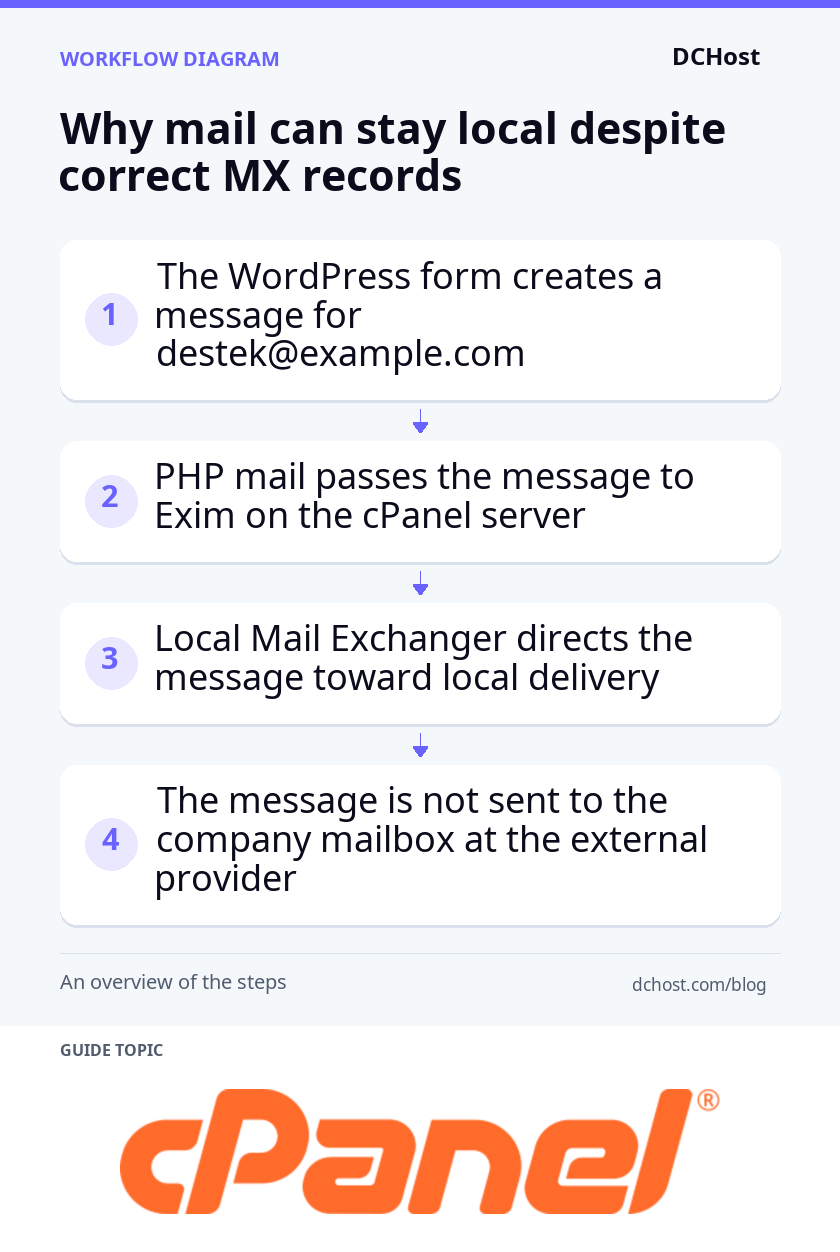
Example scenario
In this hypothetical environment, the WordPress site on example.com is hosted on cPanel. The form passes messages through PHP’s mail function to Exim, the server’s mail software. The sender is bildirim@example.com and the recipient is destek@example.com; Reply-To, the field that specifies where replies go, contains the visitor’s address. The company mailboxes are hosted by an external provider and can receive messages from outside.
Narrow down the problem with three tests
Leave routing and DNS records unchanged for now. DNS records specify which servers provide services for your domain. Note the time, time zone, recipient and outcome of each test below. Comparing these results helps you distinguish a problem with the form generating messages from a problem with their delivery path.
- Send from the form to your company address: Fill out the form on your site’s contact page. If there is a subject field, enter
ROTA-TEST-01; otherwise, add this marker at the start of the message. Submit the form, then check the inbox and spam folder fordestek@example.com. Record whether the message arrived, separately from any confirmation shown by the form. - Compare the same sending path with an outside recipient: If your form plugin has a test screen that lets you choose a recipient and uses the same sending method as the form, enter an address you control on another domain and send a test message. Check that address’s inbox and spam folder. If no such screen is available, review existing deliveries to outside recipients rather than changing the live form’s recipient. A message reaching an outside address shows that sending is not completely broken; it does not, by itself, explain why mail fails to reach your company address.
- Send to your company address from outside: From an external email account, send a message to
destek@example.com. If this arrives but the form message does not, the company mailbox can receive mail from at least that external account. You can then focus on the path taken by the form message.
Why can mail stay local when MX records are correct?
An MX record identifies a server that receives incoming mail for a domain. However, if Exim on the cPanel server treats the domain as local, it may attempt delivery on that server instead of sending the form message to the external MX destination. If a local mailbox exists, the message may stay there; if not, delivery may fail with a recipient-not-found error. Mail from outside and messages from your form can therefore take different paths, even when both use the same recipient address.
Read the delivery path in Track Delivery
In cPanel, open Email > Track Delivery, which displays mail delivery records. Enter destek@example.com in the Recipient Email field and click Run Report. Find the entry matching your test time and open its details using the icon in the Actions column. Allow for any difference between the report’s time zone and the one you recorded.
Recipient identifies the recipient, Router the routing rule used, Transport the delivery method, Delivery Host the destination server, and Result the outcome. The fields’ appearance may vary by cPanel version. Look for whether the destination is your cPanel server or your external provider, and whether the transport indicates local mailbox delivery. Evidence of local delivery supports the routing diagnosis. Read a “Success” result alongside its destination: successful delivery to a local mailbox is not delivery to your external mailbox.
If no record appears, check the recipient, the report’s available date range and any filters that hide successful deliveries. If there is still no record, you have not confirmed that the message reached Exim; do not change routing based on this finding alone. If a record exists, save its details, including the message ID, destination and result. Next, compare that delivery path with the service hosting your mailboxes and the domain’s MX destination.
Verify your mail service and MX records before making changes
In this example scenario, WordPress will stay on cPanel and the company mailboxes will remain with the external provider. You are checking an existing mail service, not setting up a new one. Confirm where the mailboxes are hosted before changing how cPanel delivers messages to them.
For these checks, you need cPanel access, permission to view your domain’s mail settings at the external provider, and access to the destek@example.com mailbox. To query DNS-the system that publishes your domain’s service addresses-use a terminal on your computer or a server with the dig tool available. cPanel menu locations and labels may vary by version and interface language.
Record the current routing selection
In cPanel, open Email > Email Routing. Email Routing determines whether this server delivers mail for the domain locally or sends it to an external service. Select example.com from the Domain list to see its current setting.
In this example scenario, the current value is Local Mail Exchanger, which selects local delivery. Note the selected value alongside the domain name, or take a screenshot. This gives you the option to restore if you need to undo a change. Do not click Change, the button that saves the setting, yet. First, confirm that the domain’s MX records point to the external provider.
Verify the publicly published MX destination
In your external provider’s administration panel, open the setup information for your domain. Find the required MX destinations and priorities; the menu name varies by provider. MX records identify the servers that receive incoming mail for your domain. To compare the published records with the provider’s requirements, run this query in your terminal, replacing example.com with your domain:
dig MX example.com +shortThe fictional response for this example scenario is shown below. It illustrates the output format; do not copy it into your DNS settings:
10 mx1.posta.example.net.The first number is the priority; a lower value is preferred. The mail server’s name follows it. If the output contains multiple lines, compare every destination and priority with the list supplied by your provider. The expected result is a match with the MX records your provider requires.
Next, in cPanel, open Domains > Zone Editor, where you can view and edit DNS records. Click Manage on the example.com row and locate the MX records in the list. Only inspect them at this stage; do not edit or delete them.
The records shown in cPanel may differ from those used on the internet. Your domain’s authoritative DNS service-the service that provides the definitive answers for its records-may be hosted elsewhere. To find the nameservers that provide those answers, run this query in the same terminal:
dig NS example.com +shortThe output should list your domain’s nameservers. To ask one of them directly for the MX records, replace the example server name below with a nameserver from that output. Replace the domain name with your own as well:
dig @ns1.dns.example.net example.com MX +shortIf the MX records returned by the authoritative server match your provider’s values and mail arrives from outside, leave those working records unchanged. Continue investigating cPanel’s delivery selection; you do not need to change your website’s address records. If the MX records do not match, confirm the correct list with your provider and resolve the discrepancy before proceeding to a routing change.
Check for old local mailboxes in cPanel
In cPanel, open Email > Email Accounts and search for addresses belonging to example.com. If destek@example.com also exists here, click Check Email for that account to open webmail and look for the earlier test message. Finding it in this local mailbox supports the local-delivery diagnosis. If the mailbox does not exist, that does not prove remote delivery is enabled: the server may still attempt local delivery and return a recipient-not-found error.
Do not delete old mailboxes or messages; they may contain correspondence left behind when moving email to an external provider. At this point, you should have a record of the current routing selection, the confirmed MX destinations and whether the earlier test message appeared in a local mailbox. Use these findings alongside the delivery record to decide whether cPanel’s delivery selection needs changing.
Set Email Routing for your external mail service
If the MX records point to your external provider and the delivery record confirms that the message stayed local, change cPanel’s Email Routing setting, not DNS. In this hypothetical example scenario, you will select remote delivery for example.com. This directs new messages sent through the cPanel server to company addresses toward the external mail service instead of local mailboxes.
The difference between local and remote delivery
Local Mail Exchanger tells the server to accept mail for this domain and deliver it to local accounts. Use this option when your mailboxes are hosted in cPanel. In this example, however, the mailboxes are at an external provider, so local delivery sends form messages addressed to the same domain to the wrong place.
Remote Mail Exchanger tells the cPanel server that it is not the final delivery destination for this domain. Messages passed to Exim, the server’s mail software, are routed to the MX destinations for remote delivery. This setting does not move mailboxes, transfer old messages or change DNS records.
Select the domain and save remote delivery
- Open the relevant screen: In cPanel, go to Email > Email Routing. Select
example.comfrom the Domain list. Check the domain carefully before proceeding; the change applies only to the selected domain. - Compare the current value: Check that Local Mail Exchanger is selected, as you recorded earlier. If you have not recorded the previous selection, note it or take a screenshot now so you can restore it if needed. Before saving, confirm that no active mailboxes for this domain still depend on local delivery. If Remote Mail Exchanger is already selected, leave it unchanged and investigate the destination and result shown in the delivery record.
- Select remote delivery: Select Remote Mail Exchanger and click Change to save the setting. You should see a success notification. Reopen the page and select the same domain to check that Remote Mail Exchanger remains selected.
Because you have not changed DNS records, there is no DNS propagation wait-the delay while cached DNS answers expire. The saved selection confirms the setting was updated, but it does not prove that a message reached the external inbox. You will check that next with a fresh form message.
Automatic detection and rollback
Automatically Detect Configuration uses the MX records in cPanel’s local DNS zone, its stored set of records for the domain. If your authoritative DNS service-the service publishing your domain’s definitive records-is hosted elsewhere, cPanel’s local records may differ from those used on the internet. Automatic detection does not continuously check whether the external mail service is working. For this example, where you have confirmed that the mailboxes are hosted externally, select Remote Mail Exchanger directly.
If you discover after saving that active accounts still need delivery in cPanel, restore the previous setting: select example.com in the same menu, choose the value you recorded and click Change. Reopen the page to confirm that the previous selection has been restored. Changing this setting does not delete mailboxes or old messages, so you do not need to recreate them. Messages delivered to the external service in the meantime will not automatically move back.
In this example, remote delivery is the correct choice. The next step is to send a fresh message from the same form and check its path in the delivery record.
How do you verify that new mail reaches the right server?
Send a fresh, identifiable message from the same form
Open the same form on your WordPress site and send a new message with the subject ROTA-TEST-02. If there is no subject field, put this marker in the message text. Keep the recipient as destek@example.com and the sender as bildirim@example.com; use the visitor’s address only in Reply-To, the field that specifies where replies go. Note the sending time and time zone. Leaving these sending settings unchanged helps you isolate the effect of the routing change.
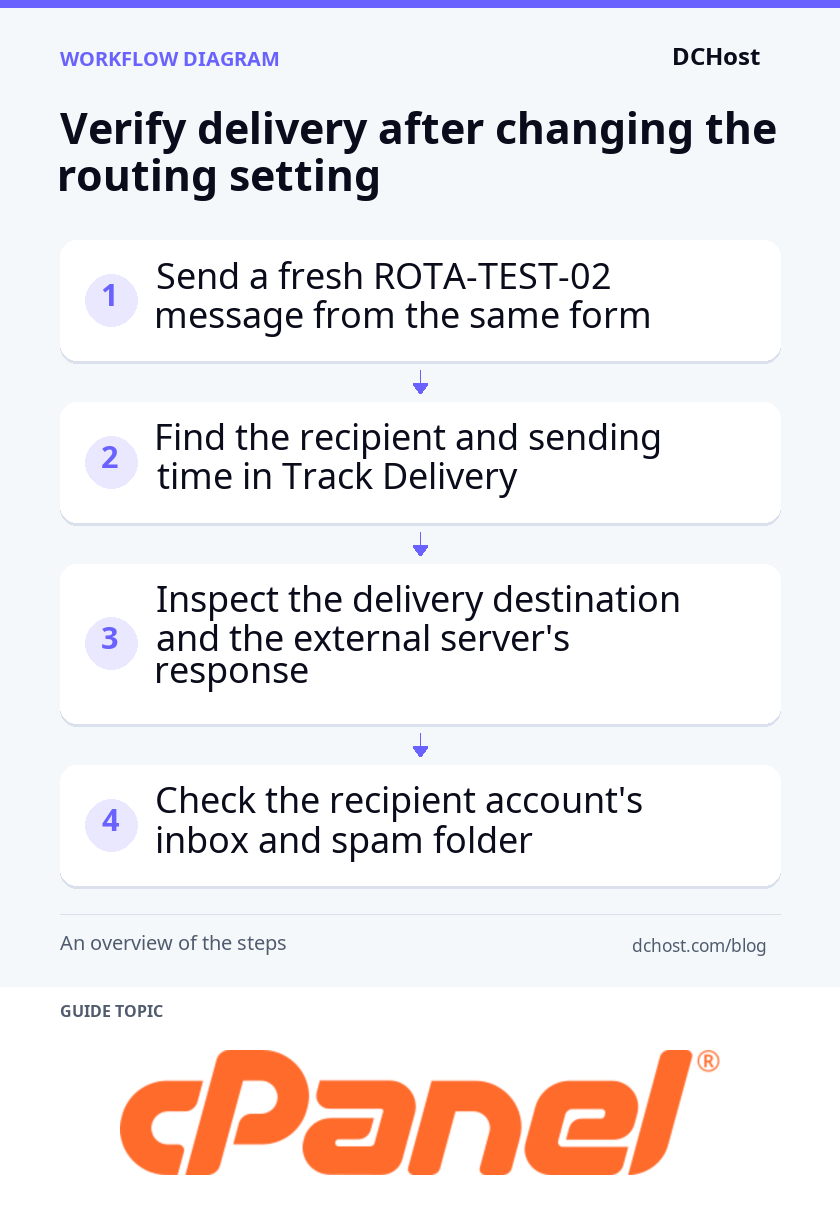
Use the earlier ROTA-TEST-01 message only for comparison. Messages already delivered to a local mailbox do not move to the external mailbox when you change routing. Older messages waiting in the server’s queue do not show which route the new message took, either.
Check the destination, acceptance response and mailbox separately
- Find the new record: In cPanel, open Email > Track Delivery. Enter
destek@example.comin the Recipient Email field and click Run Report. Open the details of the record matching your sending time, allowing for any time zone difference. The subject may not appear in the report, so use the recipient and time to identify the record. - Inspect the destination: Look at Delivery Host, the destination server, and Delivery IP Address, that server’s IP address. In this hypothetical example, the destination should be the external provider’s MX server. If the record shows delivery to a local mailbox, return to Email Routing and check that Remote Mail Exchanger was saved for the correct domain.
- Read the response: Check the Result field to see whether delivery was accepted, deferred (temporarily delayed) or rejected. A final
250acceptance response from the remote server after the message transfer is complete means that server accepted the message; it does not guarantee inbox placement. If delivery was deferred or rejected, save the error code and its accompanying text. - Check the recipient’s account: Open the external provider’s webmail and check the inbox and spam folder. If the message is missing, use the provider’s administration panel to search its message tracing records or quarantine, where suspicious messages may be held. These tools may not be available to every account; if you cannot access them, ask your mail administrator to search using the recipient and sending time.
Follow the evidence in the new delivery record
If no record appears, check the report’s time range, recipient address and filters, including those that show successful deliveries. Then check the WordPress form’s sending log, if your plugin provides one. The form may not have generated a notification email, or a plugin may have used external SMTP directly. SMTP is the protocol used to pass messages to a mail server. Messages sent through an external service without passing through local Exim will not appear in Exim’s delivery report. For those messages, inspect the plugin’s logs and the external provider’s records rather than changing cPanel routing again.
If the external server’s rejection text points to sender authentication, review your SPF, DKIM and DMARC settings. SPF identifies authorized sending servers, DKIM uses a digital signature to authenticate mail, and DMARC checks whether successful SPF or DKIM authentication aligns with the visible sender’s domain. Authenticated SMTP sending through your provider may be the next option. Before switching, save your existing plugin settings somewhere secure so you can restore the previous values if the new sending method fails. After the correction, send a fresh test and check the relevant sending service’s delivery record and the recipient’s mailbox.
If the new record still shows local delivery despite remote delivery being selected for the correct domain, send the message ID and sending time to your server administrator. The administrator can compare the routing decision in Exim’s logs with the domain’s classification as local or remote. Have the administrator identify the cause before editing files managed by cPanel. Once it is corrected, send a fresh message from the same form and confirm that its delivery record shows the external destination.
Frequently Asked Questions
What is the difference between Email Routing and Forwarders?
Email Routing determines whether the cPanel server delivers mail for a domain locally or to an external mail service. Forwarders send messages received at one address to another address. Email Routing applies to the domain; a forwarder handles messages for a particular address.
If you want messages arriving at destek@example.com at your external provider to also reach another employee, set up forwarding at that provider. A forwarder in cPanel does not affect messages delivered directly to the external service and does not fix an incorrect local delivery setting.
Can some mailboxes on the same domain stay in cPanel?
Yes, but Email Routing alone cannot choose a different mail service for each recipient. Example scenario: if destek@example.com is hosted externally while arsiv@example.com stays in cPanel, you need split delivery, an arrangement that hosts mailboxes for the same domain on different systems. This requires routing rules that direct messages according to the recipient. Your provider must support these rules, and they must work with the cPanel server’s delivery settings.
Adding both services to your MX records does not create split delivery; MX priority does not assign users to different services. Before making changes, list where each address will be hosted and agree on the delivery path with both systems’ administrators. Incorrect rules can cause messages to loop between the servers or be rejected.
Do subdomains use the main domain’s routing setting?
Do not assume that the main domain’s setting applies automatically. For kullanici@ekip.example.com, the mail domain is not example.com but ekip.example.com. Check the subdomain’s published DNS records separately, along with whether the cPanel server treats that subdomain as local or remote.
If the subdomain is used only for a website, you do not need to set up a mail service for it. To receive mail on that subdomain, make sure your provider has added it to the mail service and that the recipient account exists. Adding a DNS record alone does not create a mailbox.
First, search for Email Routing in cPanel’s search field; the label may be translated if you use the Turkish interface. If there are no results, the feature may be disabled or unavailable for your account. Ask your hosting support team to check access and help change the routing setting.
In your support request, specify the domain, explain that its mail service is external and mention that the menu is missing. Your server administrator can check feature access through Feature Manager in WHM, the panel used to manage cPanel accounts. A missing menu is not evidence of a DNS error, so leave working MX records unchanged.
Closing checklist: document the delivery path
- MX verified: Record the MX destinations published by your authoritative DNS service and confirm that they match your external mail provider’s requirements. Leave working records unchanged.
- Remote delivery selected: In cPanel, reopen Email > Email Routing and check that Remote Mail Exchanger is saved for
example.com. Keep a record of the previous selection and the time of the change in case you need to restore it. - New message’s route recorded: Save the destination server, message ID and delivery result from the Email > Track Delivery details for
ROTA-TEST-02. Use this new message’s record, rather than the earlier test, to assess whether the routing change worked. - Recipient side checked: Record whether the message appears in the inbox, spam folder or quarantine for
destek@example.com. The external server accepting a message does not guarantee inbox placement, so record acceptance and the message’s location separately.
If the problem persists, include the domain, sender and recipient addresses, and the new test’s date, time and time zone in your support request. Add the message ID, destination server and any error code and text shown in Track Delivery. If no delivery record appeared, say so explicitly.
If the external server accepted the message but you cannot find it in the recipient’s account, ask your mail provider to trace it using these details. If the new message still takes the local delivery path, send the records to your hosting support team. These details help the right team investigate where delivery stopped. Do not share passwords or personal message content from the form.