
Quick summary
HTTP Range lets a download program request only the bytes it still needs after an interruption. Bytes are units of data used to measure file size. If downloads restart, the server may not be handling these requests correctly. To check, request a small portion of a file and inspect the response.
206 Partial Contentindicates that the server is returning a portion rather than the complete file.Content-Rangeidentifies the returned bytes. Check it alongside the size of the response body-the file data actually sent.Accept-Rangesalone does not prove downloads can resume.- File changes, expired download links or an intermediate cache storing responses can affect resume requests.
Restarting a large ZIP or digital product download wastes time and data. Your browser is not always responsible: the application serving the file or an intermediary forwarding requests can also cause restarts.
You will follow a hypothetical example on a separate Ubuntu test server without changing your live site: request a small portion, resume downloading and check that the completed file matches the source. This establishes how the test server handles partial downloads. You can then compare responses along your site’s actual download path to narrow down problems in the file server, application or intermediaries.
Why downloads restart and how HTTP Range helps
When a ZIP download is interrupted, the portion already downloaded may still be on your computer. The download can still start over if your downloading application does not request the remaining portion, or if the server responds to that request with the entire file. To distinguish these causes, you need to inspect the request and response, not just the progress bar.
HTTP Range resumable downloads work by requesting a specific range of bytes instead of the entire file. A byte is a unit of data used to measure file size. The client-your browser or download program-can request the bytes that follow the portion it already has. To resume safely, the client must preserve that local portion, and the server must serve the same file version and handle the range request correctly.
What do 206, 200 and 416 responses tell you?
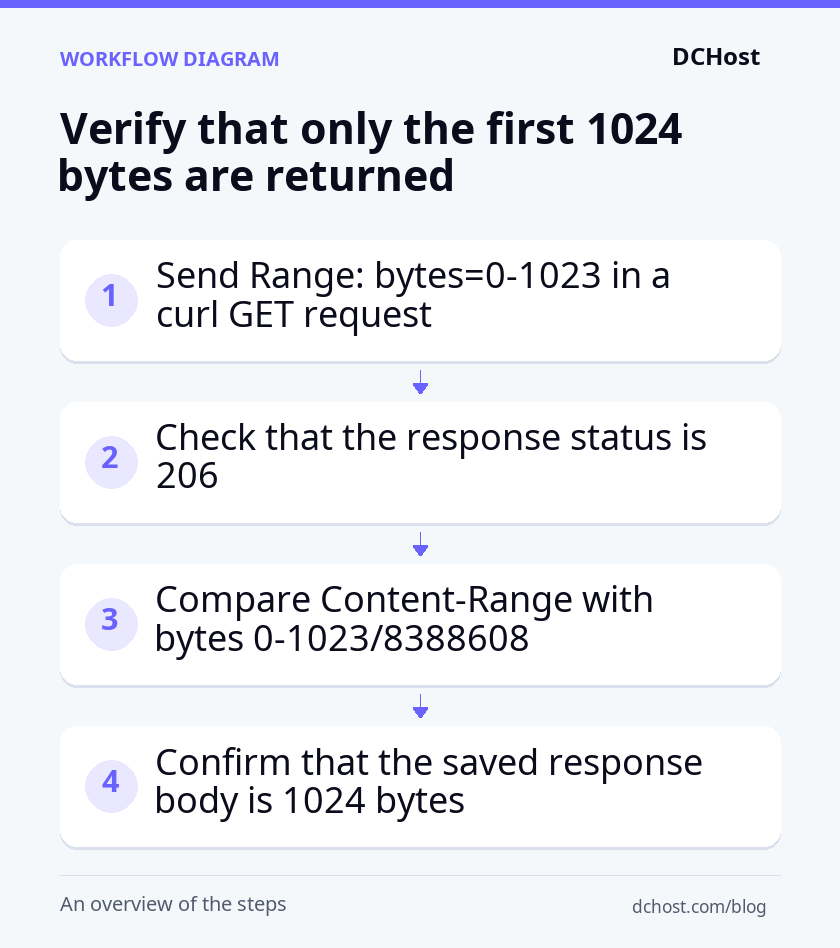
HTTP headers carry information about a request or response. The Range request header specifies the portion you want to retrieve. For example, Range: bytes=0-1023 requests the first 1024 bytes of a file. Positions start at zero, and both ends of the range are included. If the server fulfills this single-range request, it returns 206 Partial Content, indicating a partial response.
The Content-Range response header identifies the returned portion’s position within the file and the file’s total size. In the hypothetical example used below, requesting the first 1024 bytes of an 8388608-byte file should return Content-Range: bytes 0-1023/8388608. The response body-the file data sent after the headers-should be 1024 bytes in this case. Check the 206 status, range information and received data size together. Together, these checks show whether the response covers the requested range, rather than relying solely on the server’s advertised support.
200 OK indicates that the request succeeded but the response is not partial. For a file request, this usually means the entire file is being sent. The server may have ignored the Range header. If the client appends this response to the existing portion, it can corrupt the file. It must treat the incoming data as a complete file, not as the remaining portion.
416 Range Not Satisfiable indicates that the requested range cannot be fulfilled. For example, this response is expected when the starting position is beyond the file’s last byte. For the example file, the server can report the current total size with Content-Range: bytes */8388608. If you receive this response, compare the reported size with the size of your local portion. The file may have changed, or your local copy may already be complete; matching sizes alone do not confirm matching contents. This response alone does not mean Range support is broken. Understanding HTTP status code meanings can also help you interpret other responses you encounter.
Why isn’t Accept-Ranges enough on its own?
Accept-Ranges: bytes is a header advertising the server’s support for byte ranges; it does not prove that you can successfully resume a download. Its absence does not necessarily mean that a range request will be rejected, either. To test support, request a specific range and inspect what the server returns. Next, you will do this with a single example file, checking the response headers and downloaded data size together before attempting to resume.
Set up the example environment and verify a partial response
First, check whether Nginx returns only the requested portion of a file, without other services in the request path. Once this works, you can try resuming a download. Testing locally lets you examine the file server’s behavior separately from application or caching effects.
Example scenario
In this hypothetical setup, you have an empty Ubuntu 24.04 test server and a user with sudo permission, which allows you to run commands with administrator privileges. Run every command in this server’s terminal. Once configured, Nginx will be accessible only at 127.0.0.1:8080, meaning from the server itself. Your test file is not a real ZIP archive: it contains 8388608 bytes of randomly generated data.
Install Nginx and create the test file
The Nginx web server will serve the file, while the curl command-line tool will send requests and save responses. Package installation may temporarily start the default site on port 80. Before installing, make sure inbound web traffic is blocked at the network firewall, but leave SSH access open so you can keep using your terminal connection.
The following commands install and stop Nginx, back up its initial configuration and disable the default site. They then create the test file and a working directory for saving responses. Run them only in the empty test environment, not on a server hosting existing websites. Run the backup command only on your first pass through these steps; do not repeat it if its destination already exists.
sudo apt update
sudo apt install -y nginx curl
sudo systemctl stop nginx
sudo cp -a /etc/nginx /etc/nginx.range-demo.bak
sudo rm -f /etc/nginx/sites-enabled/default

sudo install -d -m 755 /srv/range-demo
sudo dd if=/dev/urandom of=/srv/range-demo/paket-v1.bin bs=1048576 count=8 status=progress
sudo chmod 644 /srv/range-demo/paket-v1.bin
mkdir -p /tmp/range-demo
cd /tmp/range-demo
The backup at /etc/nginx.range-demo.bak preserves the configuration from before your changes. Keep it for the rollback steps at the end of this section, which restore those initial settings. On a fresh installation, disabling the default site removes the listener on external addresses. The file creation command should report 8388608 bytes written, and the read permission allows Nginx to serve that test data.
Configure the local file server
In the same terminal, run the following command to create /etc/nginx/conf.d/range-demo.conf. The root directive tells Nginx which directory contains the requested file; here, it points to the test directory you just created. Nginx can handle Range requests for static files stored on disk, so you do not need to add an Accept-Ranges header manually. Run the configuration test and start command before the final reload command, and continue only if they succeed.
sudo tee /etc/nginx/conf.d/range-demo.conf > /dev/null <<'EOF'
server {
    listen 127.0.0.1:8080;
    server_name localhost;
    root /srv/range-demo;
    gzip off;

    location / {
        try_files $uri =404;
    }
}
EOF
sudo nginx -t && sudo systemctl start nginx
sudo systemctl reload nginx
The nginx -t output should report that the configuration test succeeded. If it reports an error, stop before the reload command. Correct the file and line identified in the output, then repeat the test and start command. After Nginx starts successfully, it will handle file requests at the local address. Compression is disabled here so you can inspect the file’s bytes directly during the next check.
Verify the first 1024 bytes with a GET request
Run the following commands in the same terminal to request only the first 1024 bytes. Curl uses GET by default to retrieve file content; do not use the -I option, which requests only headers. The commands save the response headers and body-the returned file data-to separate files. The final two commands print the headers and show the saved body’s byte count.
cd /tmp/range-demo
curl --silent --show-error --noproxy '*' \
  -H 'Range: bytes=0-1023' \
  -D ilk-basliklar.txt \
  -o ilk-1024.bin \
  http://127.0.0.1:8080/paket-v1.bin
cat ilk-basliklar.txt
wc -c ilk-1024.bin
--noproxy '*' bypasses any proxy, an intermediary that forwards requests, configured in your terminal environment. This keeps the request local. For this hypothetical example, expect the following status code, header values and saved file size. Your response may include other headers:
HTTP/1.1 206 Partial Content
Content-Length: 1024
Content-Range: bytes 0-1023/8388608

1024 ilk-1024.bin
If you see 404, first run ls -l /srv/range-demo/paket-v1.bin to check that the file exists in the expected location. If it is missing, repeat the file creation step. If it exists, compare the requested filename and the directory in the server configuration with the example values.
If you see 200, inspect the sudo nginx -T output, which shows the configuration Nginx reads. Confirm that the listener on port 8080 belongs to the example server block, and look for a setting such as max_ranges 0; that disables range handling. Correct only the cause you identify. If you change the configuration, run the configuration test before reloading Nginx. Then repeat the same GET request: the status code, returned range and saved body size should all match the expected values above.
Do not run the cleanup commands yet. Keep the environment in place for the next resume test. After you finish all the tests, use the following commands to remove the example server configuration and restore the initial settings from your backup. Restoring those settings also re-enables the default site, so keep the firewall restriction on inbound web traffic in place. The final command reloads Nginx only if the restored configuration passes its syntax test:
sudo rm /etc/nginx/conf.d/range-demo.conf
sudo cp -a /etc/nginx.range-demo.bak/. /etc/nginx/
sudo nginx -t && sudo systemctl reload nginx
Download the remaining bytes and check file integrity
Save the first portion and resume into the same file
Keep the example Nginx configuration running for these checks. In the same test server’s terminal, retrieve the first 1048576 bytes to represent an interrupted download. The commands below save response headers and overwrite the example download file indirme.bin; they do not change the source file. You will resume from this larger portion rather than the 1024-byte file saved in the previous check.
cd /tmp/range-demo
curl --silent --show-error --noproxy '*' \
  -H 'Range: bytes=0-1048575' \
  -D parca-basliklar.txt -o indirme.bin \
  http://127.0.0.1:8080/paket-v1.bin
cat parca-basliklar.txt
wc -c indirme.bin
Before continuing, look for 206 and Content-Range: bytes 0-1048575/8388608 in the headers, and 1048576 bytes in the size output. If these values do not match, return to the partial-response check before attempting to resume.
The response’s ETag is a validator-a value the server provides to distinguish file versions. Sending it in the If-Range header asks the server to return the remaining portion only if the validator still matches. Extract the value from your saved headers and print it with:
etag=$(awk 'tolower($1)=="etag:" {sub(/\r$/, ""); print $2; exit}' parca-basliklar.txt)
printf '%s\n' "$etag"
In this hypothetical Nginx setup, expect a value enclosed in double quotes; preserve those quotes. If the value is empty or begins with W/, which marks a weak validator that does not guarantee byte-for-byte equality, do not use it for the If-Range test. Once you have a suitable value, run the following commands. The first saves a copy of the initial portion so you can restore it if the resume attempt fails; curl then requests the remaining bytes:
cp indirme.bin ilk-parca.bin
curl --silent --show-error --noproxy '*' \
  -C - -H "If-Range: $etag" \
  -D devam-basliklar.txt -o indirme.bin \
  http://127.0.0.1:8080/paket-v1.bin
cat devam-basliklar.txt
wc -c indirme.bin
sha256sum /srv/range-demo/paket-v1.bin indirme.bin
-C - tells curl to calculate the resume position from the local file’s size. Expect 206 with Content-Range: bytes 1048576-8388607/8388608, and a completed file of 8388608 bytes. These values show that the server returned the portion following your initial download.
The final command checks file integrity: whether the completed download matches the source. A SHA-256 checksum is a value calculated from a file’s contents. The checksums at the beginning of the two output lines should match. If they differ, do not use the downloaded file. Restore the initial portion with cp ilk-parca.bin indirme.bin before retrying, and investigate the saved headers, file size and any curl error first.
Test a version mismatch safely
When the validator no longer matches, a server handling If-Range ignores the requested range and returns the complete file with 200. You can check this behavior without modifying the source file. In the same terminal, deliberately send a different ETag:
curl --silent --show-error --noproxy '*' \
  -H 'Range: bytes=1048576-' \
  -H 'If-Range: "eslesmeyen-deneme"' \
  -D uyusmazlik-basliklar.txt -o /dev/null \
  http://127.0.0.1:8080/paket-v1.bin
cat uyusmazlik-basliklar.txt
Expect 200 here. The command discards the response body rather than appending it to your existing portion. If you receive this response during an actual resume attempt, do not combine the old portion with the incoming full file. Download the complete file from the beginning into a separate file.
Check a request beyond the file boundary
The last byte is at position 8388607, so a range starting at position 8388608 falls outside the file. Run these commands in the same terminal to request that range and display the response headers:
curl --silent --show-error --noproxy '*' \
  -H 'Range: bytes=8388608-' \
  -D sinir-basliklar.txt -o /dev/null \
  http://127.0.0.1:8080/paket-v1.bin
cat sinir-basliklar.txt
Expect 416 and Content-Range: bytes */8388608. Together, they show that the server rejected a starting position outside the file and reported its current total size; this is not broken resume support. If your results match, you have checked both successful resumption and the server’s response to an invalid starting position.
Isolate problems in the proxy, CDN and application layers
Request the same portion from the origin and public endpoint
If the local test succeeds, you have confirmed that Nginx can resume downloads of the example file-not that your public download path works. The origin server is the server that supplies the file. A proxy is an intermediary server that forwards requests, while a CDN is a content delivery network that serves content from different locations. Comparing the origin’s response with the public endpoint-the download address your users access-helps you identify where range handling differs.
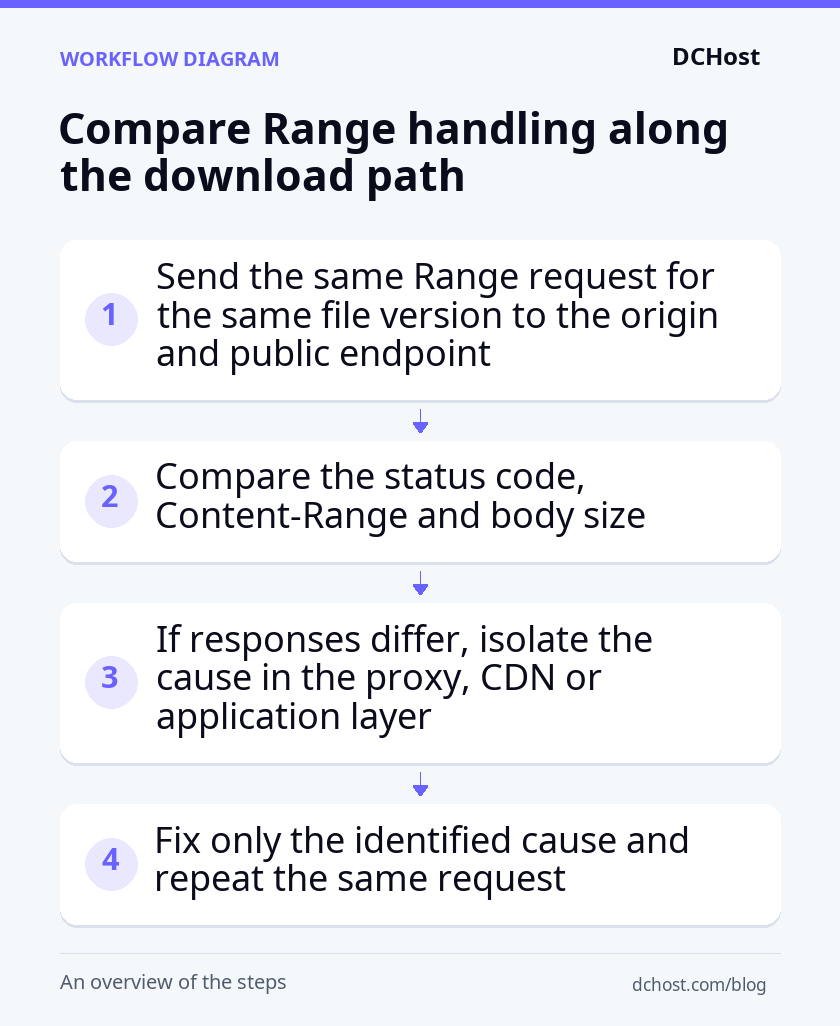
The example environment has no CDN; 127.0.0.1:8080 is not publicly accessible. For the following comparison, use an existing HTTPS download address you manage. You need permission to access the origin directly, and it must present a valid certificate for the domain. Choose a test file of at least 1024 bytes, with the same version available through both endpoints.
Run the commands below in the test server’s Bash terminal. The three prompts ask, in order, for the full HTTPS download address, its domain name alone (without the scheme or path), and the origin server’s IP address. The commands save each response’s headers and file data separately, then display the headers and byte counts:
cd /tmp/range-demo
read -r -p 'HTTPS indirme adresi: ' url
read -r -p 'Adresteki alan adı: ' alan
read -r -p 'Kaynak sunucunun IP adresi: ' kaynak_ip
curl --silent --show-error --noproxy '*' \
  -H 'Range: bytes=0-1023' -H 'Accept-Encoding: identity' \
  -D dis-basliklar.txt -o dis-parca.bin "$url"
curl --silent --show-error --noproxy '*' \
  --resolve "${alan}:443:${kaynak_ip}" \
  -H 'Range: bytes=0-1023' -H 'Accept-Encoding: identity' \
  -D kaynak-basliklar.txt -o kaynak-parca.bin "$url"
cat dis-basliklar.txt kaynak-basliklar.txt
wc -c dis-parca.bin kaynak-parca.bin
The first request goes to the public address. In the second, --resolve directs the connection to the origin IP while preserving the domain name and TLS certificate verification-the check that confirms the server’s identity over a secure connection. The commands assume the standard HTTPS port 443 and request uncompressed content. For the same file version, expect 206, an identical Content-Range and a 1024-byte body from both endpoints.
These commands do not follow redirects automatically or use your browser session. If you receive a redirect, inspect its destination in the response’s Location header before testing the destination with appropriate authorization. Do not mistake a login page for the file. If the origin is unreachable, run the comparison from a network permitted to access it rather than opening the firewall to public traffic.
Narrow down header, cache and compression differences
If the origin returns 206 but the public endpoint returns 200, first confirm that both responses contain the file you expect. Then check whether the request forwarded to the origin includes Range and, during resumption, If-Range. In the Nginx proxy server’s terminal, inspect the sudo nginx -T output for proxy_set_header lines that clear these headers or a proxy_pass_request_headers off setting.
If you find a setting that prevents forwarding, back up the configuration file containing it. Remove the header-clearing override or restore request-header forwarding only for the affected download path. If nginx -t succeeds, reload the configuration and repeat the origin and public endpoint requests. You should now receive a partial response from the public endpoint too, with the correct range and body size. If the change does not help or causes another problem, restore the backup file, test the configuration and reload it.
If the first request and a subsequent request produce different responses, check the CDN panel for evidence that the test file is being served from cache-a stored copy used to answer later requests. Clear the cache for this file only, then repeat the same request twice. If behavior changes once the cache is populated, inspect the settings for range requests and partial responses on the affected download path. Record their current values before making a targeted change, then repeat the requests to check its effect.
Content-Encoding identifies compression applied to the response. If this header differs between the origin and public responses, you may be comparing compressed and uncompressed versions of the same file. Record the relevant compression or content-transformation settings, then disable the identified transformation only on the download path and repeat the comparison. Do not disable compression across the entire site. If the difference remains, restore the settings you recorded.
Check PHP delivery and expiring links separately
If a static file download resumes but a download through PHP restarts, send the same range request to the application using valid access permissions. Compare the response status, Content-Range and body size with the static file response. Using readfile() alone in PHP does not provide range support.
One option is to keep authorization-the check that you are allowed to download the file-in the application while letting Nginx transfer the file. This combines an internal location, which blocks direct external access, with the X-Accel-Redirect header, which tells Nginx the path to serve. Moving a paid file into a publicly accessible directory would bypass that protection; it is not a substitute for this approach.
If a resume request receives 403 or a redirect to a login page, first check the link’s expiration time and whether your login session is still valid. Investigate access permissions before changing range handling: neither response, by itself, proves that the link has expired.
After obtaining a new authorized link, compare the file version and ETag validator with those in the response for the initial portion. Renewing the link restores access, but does not establish that the file is unchanged or that you can safely append data to the old portion.
Frequently Asked Questions
Do resumable downloads require HTTP/3?
No. HTTP Range resumable downloads also work over HTTP/1.1 and HTTP/2. Switching to HTTP/3 will not fix missing range support in your application. HTTP/2 and HTTP/3 performance can vary with connection conditions, but resuming a download still requires your download program to request the remaining bytes and the server to return that range correctly.
Will every browser resume if the server supports it?
No. Your browser’s ability to resume depends on its version, whether it still has the download record and partially downloaded file, and whether you still have access to the file. Clicking the link again may start a new download rather than resume the existing one. First try the Resume option in your browser’s downloads list; it may not be available for every type of interruption. Safe resumption also requires the server to keep serving the same file version.
Are parallel downloads always faster?
No. Parallel downloading retrieves different ranges of a file through simultaneous requests. It may help when speed is limited per connection, but may offer no improvement if all available bandwidth is already in use. Too many simultaneous requests can also exceed the server’s request limits. In your download manager, try downloading the same file as a single part first, then with a small number of simultaneous parts. Compare transfer speeds and any errors before increasing the number of parts.
Can a Range request bypass access controls for paid files?
Range does not grant access to a file; it only specifies which bytes are requested. In a correctly configured system, every request for a portion of the file also passes through access checks. In systems such as WooCommerce, keep downloads routed through the application mechanism that checks whether the buyer is entitled to download the file. If a direct file address or shared cache bypasses this check, unauthorized access may become possible. That is an access-control failure, not a consequence of Range support.
Final checklist before going live
- Partial response: Request the first 1024 bytes and check that you receive a
206response, aContent-Rangeidentifying those bytes and a response body of exactly 1024 bytes. - File integrity: Compare the
sha256sumvalues of the completed, resumed download inindirme.binand the source file. Both values must match before you use the downloaded file. - Changed file: Send a mismatched
If-Rangevalue and check that the server returns the entire file with a200response. Make sure the incoming data is not appended to the old partial file. - Public endpoint: Compare the status code, range and body size returned by the public download address with those returned by the origin server. Both requests must target the same file version.
- Authorization: Check that you can resume with valid access permissions. Then confirm that a request using an unauthorized or expired link cannot retrieve file data.
After these checks, deliberately stop and resume a test file download through the actual download address your users access. Use a file you are authorized to download, then compare the completed file’s checksum with the source file’s checksum. Matching checksums confirm that this resumed download produced the correct file through the public download path, not just in the local example.





