Quick summary
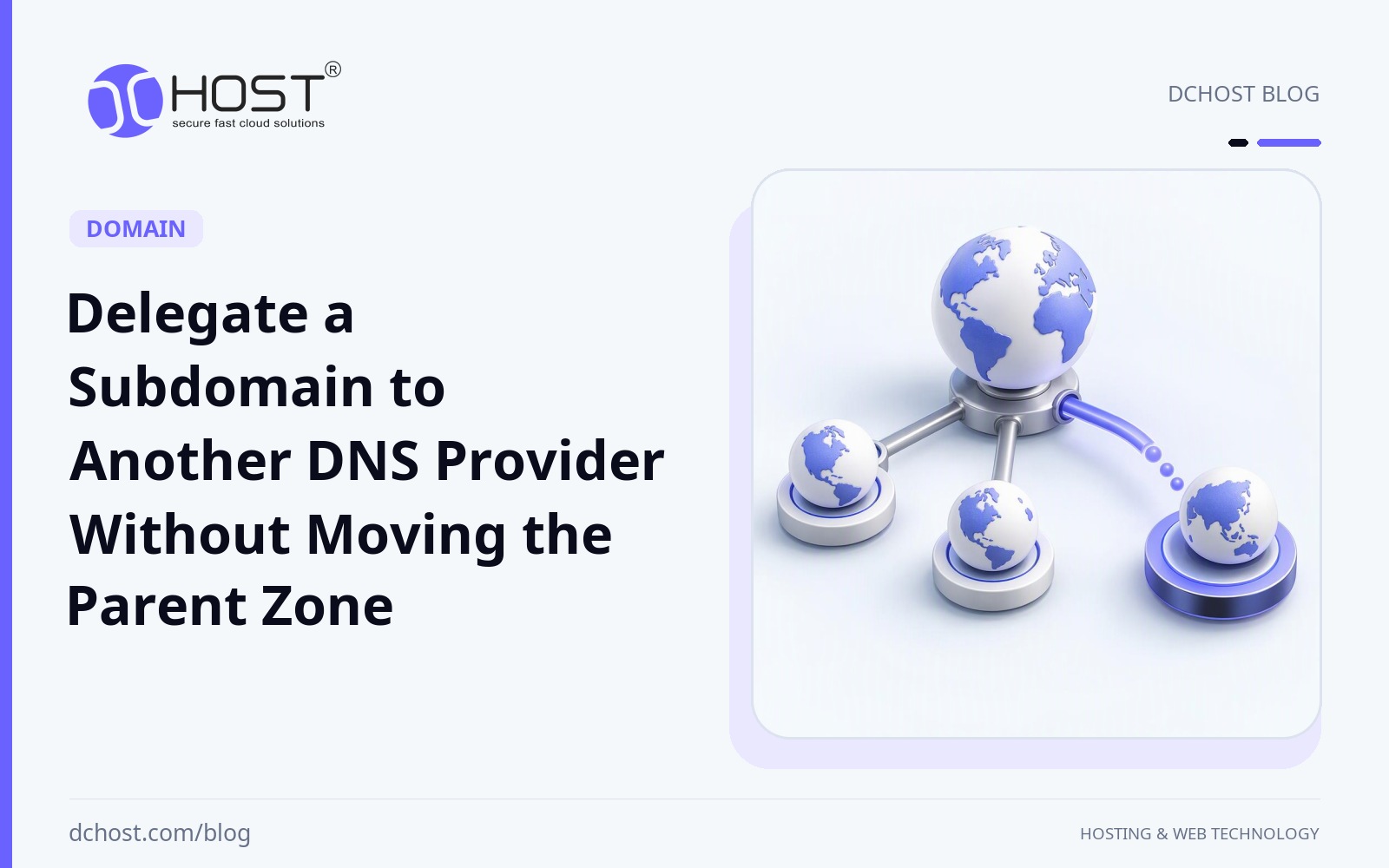
Subdomain DNS delegation lets another team or provider manage a subdomain’s records while your main domain stays with its current DNS provider. You add NS records to identify the subdomain’s authoritative servers-the DNS servers responsible for answering queries about it.
- Your parent domain’s nameserver settings remain unchanged.
- The new provider hosts a separate DNS zone, a set of records managed together, for the subdomain.
- NS records delegate authority; A records point to IPv4 addresses, while CNAME records make one name an alias for another.
- Check that the new servers answer correctly before delegation, then verify that DNS queries reach them.
If your development team needs to manage a subdomain, delegation lets you give them that responsibility without granting access to your main website and email DNS settings. It separates management permissions, not the visibility of public DNS records, and does not require moving your application to another server.
Example scenario: In this hypothetical setup, example.com stays with its current DNS provider, while dev.example.com is managed at a second provider. You’ll prepare the new zone, delegate authority through NS records in the parent domain’s zone, and use the DNS query tool dig to check that the correct servers answer. These checks confirm what DNS servers actually publish, rather than relying only on the records displayed in your panel.
What does subdomain DNS delegation change?
Subdomain DNS delegation lets you give another team or DNS service control of a subdomain’s records while keeping your main domain’s DNS management where it is. It changes which DNS servers are authoritative, meaning responsible for answering queries about the subdomain. It does not change the server hosting your website. Your team can manage its assigned records without access to your main DNS panel.
Why use NS records instead of A or CNAME?
DNS is the system that maps domain names to connection information such as IP addresses. Each record type has a different purpose. If you only want to point an application to another server, you may not need delegation. To give someone independent control of its DNS records, use NS records to identify the authoritative nameservers.
| Record | What does it do? | When should you use it? |
|---|---|---|
| A | Maps a name to an IPv4 address. | When you want to point a subdomain to a specific server. |
| CNAME | Makes one name an alias for another DNS name. | When you need to use a target hostname supplied by a service. |
| NS | Identifies authoritative nameservers; used in the parent zone to delegate authority for a subdomain. | When you want a separate team or provider to manage the subdomain’s records. |
Adding an A or CNAME record does not give the other party control of your DNS records. With NS delegation, the new authoritative servers answer queries for the subdomain’s records. Delegation does not move files, databases or applications, so your application can continue running on the same server.
Where does the parent zone end and the child zone begin?
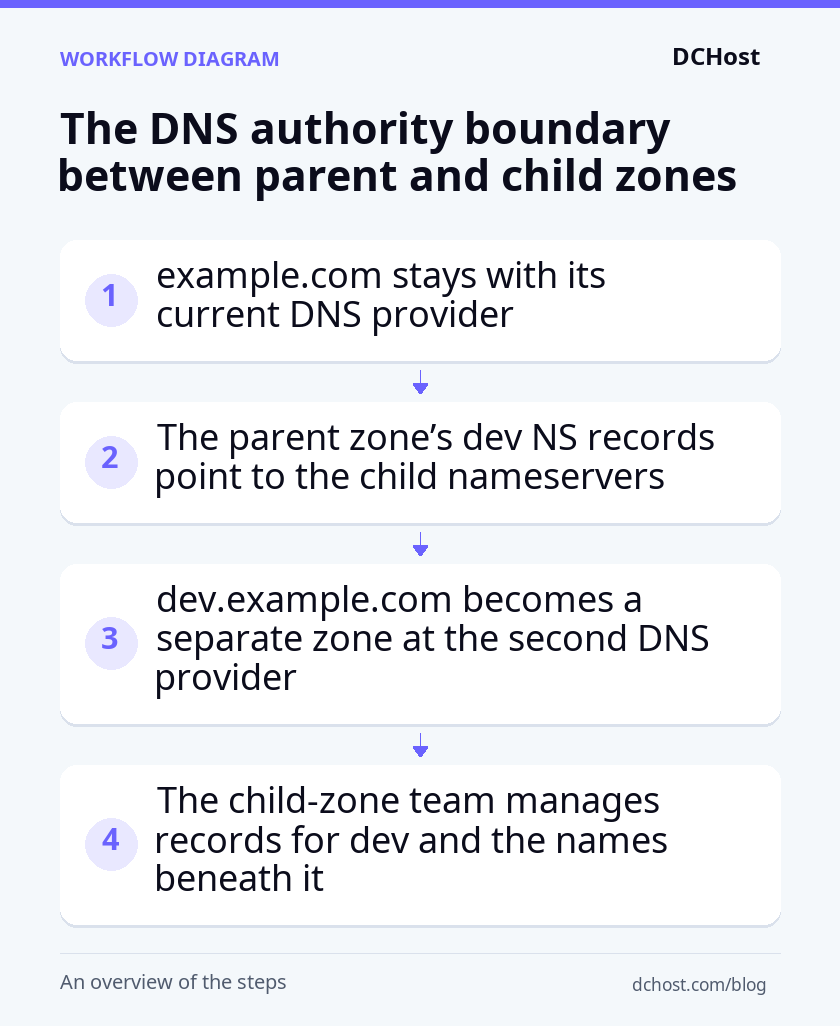
A DNS zone is a portion of the DNS tree whose records are managed together. Example scenario: example.com stays with its current DNS service, while dev.example.com becomes a separate zone at a second service. In this hypothetical setup, the zone containing the main domain is the parent zone, and the delegated zone is the child zone.
The dev.example.com NS records in the parent zone tell the resolver, the service that makes DNS queries on your behalf, which child-zone servers to ask for answers. Records for dev.example.com and names beneath it, such as www.dev.example.com, are then managed in the child zone. example.com, www.example.com and other sibling subdomains remain outside this delegation.
This boundary determines which panel you use to edit records. After delegation, edit the record for www.dev.example.com at the child zone’s DNS service. Adding an ordinary record for that name in the parent zone will not update the child zone or change the answer during normal DNS resolution. Make sure each team knows which records it manages and which DNS panel to use.
Does delegation fit your needs?
Delegation makes sense when your development team needs to create further subdomains within its assigned branch, add verification records or change service targets independently. If you only need to point one website’s address to another server, an A or CNAME record in the existing zone may be simpler. The deciding factor is not where the application runs, but who needs independent control of its DNS records.
Prepare the example environment and new DNS zone
Prepare access and existing records
Example scenario: In this hypothetical setup, both managed DNS services support hosting child zones. The parent zone’s authoritative servers are ns1.parent.example and ns2.parent.example, and the child zone’s new authoritative servers are ns1.child.example and ns2.child.example. These are placeholder names; use the actual server names supplied by your providers. The walkthrough uses a child zone without DNSSEC, which validates DNS answers using digital signatures. Its nameservers are outside the delegated subdomain.
You need permission to edit example.com records at the current service and create a zone at the new service. Before changing anything, export the records from the current panel’s zone management screen. If there is no export option, save each record’s name, type, value and TTL-the length of time an answer can be cached. This inventory lets you restore the old records if you need to roll back. Identify all A, AAAA, CNAME, MX, TXT and other records for dev.example.com and the names beneath it. Moving only the web record can leave mail or service verification records missing.
In the current panel’s record editing screen, set the TTL field for the records you will move to 300 seconds, if the service supports it. Save the changes and check that the record list shows the updated TTLs. This shortens the cache lifetime of answers retrieved after the change, but answers already cached can remain in use for their original TTL. Wait for that original period to expire before delegating authority. Do not delete any records during this preparation stage.
Create the child zone and add its records
At the new service, open the zone creation screen. The paths and field labels here are illustrative; your provider’s interface may differ. Choose DNS > Zones > Add zone, enter dev.example.com in the zone name field, and create it as an authoritative DNS zone. You should now see the new zone and its assigned nameservers. Save the two nameserver names assigned in this example; you will use them when adding delegation records to the parent zone.
Open Records > Add record within the new zone and add each example record below. Enter the record name in Name, select its Type, and enter its destination in Value/Target. Set TTL to the value shown. Here, @ means the zone root, dev.example.com. The first record points that root name to the application’s IP address; the second makes the www name an alias for the root name.
| Name | Type | Value/Target | TTL |
|---|---|---|---|
| @ | A | 192.0.2.80 | 300 |
| www | CNAME | dev.example.com. | 300 |
192.0.2.80 is an address reserved for documentation; replace it with your application’s actual IP address before saving. The trailing dot in the CNAME target marks a fully qualified DNS name-a complete name rather than one relative to the zone. Some panels add this dot automatically. After saving both records, check that they appear in the record list with the intended values and that the zone name has not been appended to the target a second time.
Next, copy the remaining records from your inventory into the child zone, adjusting their names to match the new zone’s scope. A record named api.dev in the parent zone becomes api here, so its full DNS name stays unchanged. Check the saved entries against your inventory before moving on to direct DNS queries.
Before changing the parent zone, check that both new nameservers answer correctly for the child zone. The provider-generated SOA record contains the zone’s administrative and version information, while the NS records identify its assigned authoritative servers. Query these records directly to check what each server publishes; do not replace the provider’s values with guessed ones.
Open an Ubuntu terminal. You need sudo privileges for the first two commands, which install the package containing the DNS query tool dig; skip those commands if it is already installed. Before running the remaining queries, replace the placeholder server and domain names with your actual values. The queries ask each server for its own published answers without asking it to consult other servers:
sudo apt update
sudo apt install dnsutils
for ns in ns1.child.example ns2.child.example; do
  dig @"$ns" dev.example.com SOA +norecurse
  dig @"$ns" dev.example.com NS +norecurse
  dig @"$ns" dev.example.com A +norecurse
  dig @"$ns" www.dev.example.com CNAME +norecurse
done
For each query to both servers, look for status: NOERROR, the aa flag indicating an authoritative answer, and the expected record values. The NS records should match the nameservers assigned by the provider, and the SOA information should agree with the provider’s zone settings. The A and CNAME answers should match the records you saved in the child zone.
If a query receives no answer, check that its server name matches the provider’s assigned nameserver, then open the child zone in the new provider’s panel and check its publication status. Correct any wrong query target or incomplete publication, then repeat the same queries. If queries still time out, ask the provider to check server reachability. Do not start delegation in the parent zone until both servers return the correct answers; existing traffic continues to use the old DNS records at this stage.
Once both child authoritative servers return the expected answers, open the example.com zone at your current DNS service. The two NS records you add here delegate authority only for dev.example.com and the names beneath it. Do not change the Nameserver setting at your domain registrar; the main domain’s authoritative servers remain ns1.parent.example and ns2.parent.example.
Resolve conflicting records
In your current panel, open the example.com zone under DNS > Zones, or your provider’s equivalent screen. On the Records screen, filter for dev and the names beneath it. Compare your saved record inventory with the new child zone. If an MX record for mail delivery or a TXT record for verification or other settings has not been migrated, add it to the child zone first. After delegation, queries for these records will also go to the new authoritative servers.
If a CNAME exists at dev, you must remove it before adding NS records at that same name. First, confirm that the new child zone contains records that preserve the required service destinations, and keep the old CNAME’s details in your rollback inventory. You cannot copy that CNAME to the child zone’s root because SOA and NS records already exist there. In this example, an A record provides the root address.
The parent zone’s old dev A/AAAA address records and records beneath it, such as www.dev, will no longer be the source of answers after delegation. Keep their exported details for rollback, and remove them during the same change window as the NS additions. If the panel supports publishing changes in a batch, publish the deletions and additions together to avoid a gap where records are missing. Leave records outside the delegated branch untouched.
Save both NS records
In the same parent zone, open Records > Add record and add each row below as a separate record. Enter the subdomain label in Name, select NS in Type, and enter the assigned nameserver name-not an IP address-in Value/Target. Set TTL to 300 seconds, if supported, to keep the delegation’s cache lifetime short during the transition.
| Name | Type | Value/Target | TTL |
|---|---|---|---|
| dev | NS | ns1.child.example. | 300 |
| dev | NS | ns2.child.example. | 300 |
Replace the placeholder targets with your actual nameserver names. If the panel requires the full record name, enter dev.example.com; do not use @, which refers to the main domain on this screen. After saving, check that the record list shows both NS records for dev.example.com and that their targets match the child zone’s NS records. The panel should now show the intended delegation; the next section checks whether both parent servers actually publish it.
Restore the previous setup if needed
To roll back, remove these two NS records from the parent zone and restore the old records from your saved inventory. Publish the removals and restorations together if possible. Then query both parent authoritative servers directly for the restored records, using the direct-query method in the next section. Each server should return the old records rather than a referral directing queries to the child servers.
Resolvers that have cached the delegation may continue contacting the child authoritative servers after you restore the parent zone. Do not delete the child zone immediately during rollback; keep it serving the required records while cached delegation information remains in use. Allow for the TTLs of both the delegation NS records in the parent zone and the NS records published by the child zone, rather than assuming the parent’s 300-second TTL is the only cache lifetime involved.
Verify delegation with dig and isolate errors
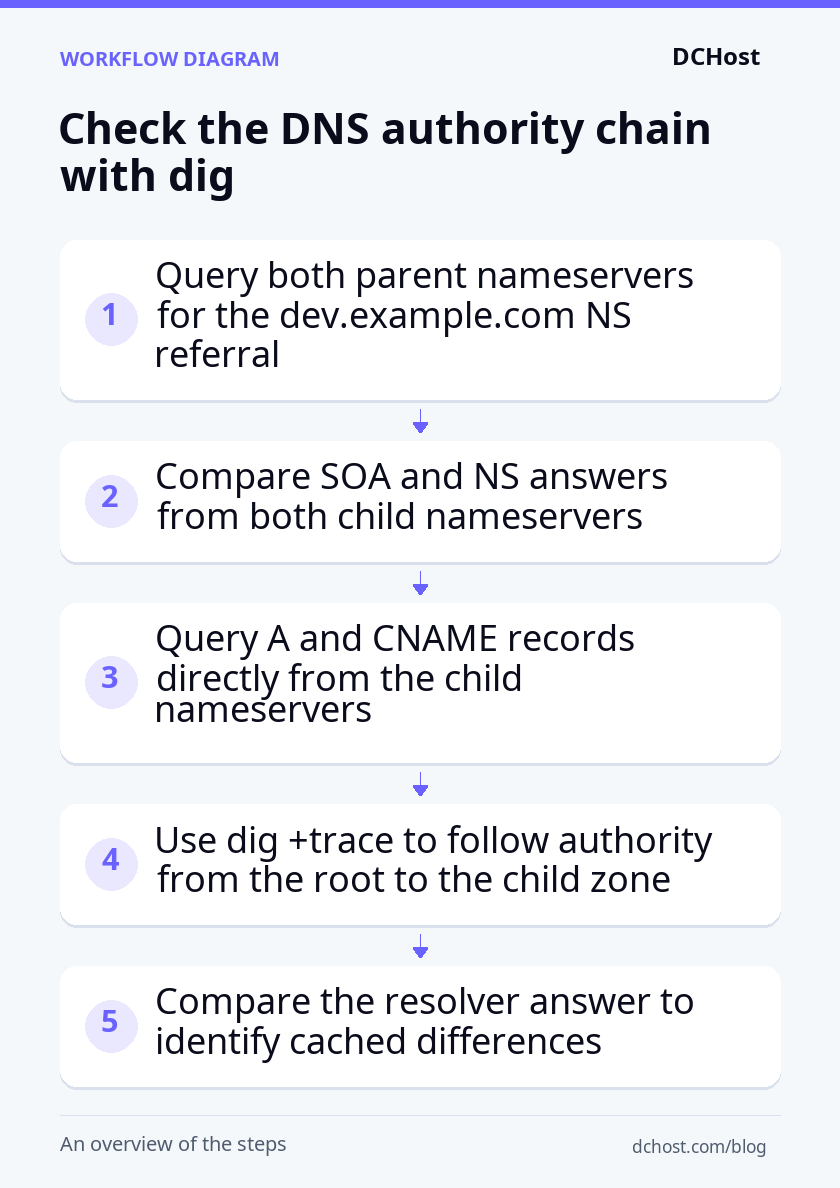
First, check that both parent authoritative servers direct queries to the new child servers. Run the following commands in your Ubuntu terminal, replacing the placeholder server and domain names with your actual names. +norecurse requests an answer without asking the server to consult other servers, so you can check what each server publishes directly.
for ns in ns1.parent.example ns2.parent.example; do
  dig @"$ns" dev.example.com A +norecurse
done
In this example, both parent servers should return a referral: a response directing queries to the child authoritative servers rather than supplying the address themselves. Look for status: NOERROR, an empty ANSWER section, and the two child NS records in the AUTHORITY section. The aa flag, which indicates an authoritative answer, is not expected in this referral. If one parent server returns the old A record while the other returns a referral, they are not yet publishing the same change. Check the publication status in the parent provider’s DNS panel, then repeat the queries against both servers.
Once both parent referrals are correct, check that the child authoritative servers return consistent zone and application records. Run the following commands in the same terminal, again replacing the placeholder names with your own.
for ns in ns1.child.example ns2.child.example; do
  dig @"$ns" dev.example.com SOA +norecurse
  dig @"$ns" dev.example.com NS +norecurse
  dig @"$ns" dev.example.com A +norecurse
  dig @"$ns" www.dev.example.com CNAME +norecurse
done
Each child-server response should show NOERROR and aa. Across the four queries, check for the SOA record, the same pair of NS targets, and the A and CNAME values you saved in the child zone. The serial in the SOA record identifies the zone version. If differences in versions or record values persist between servers, check the publication status in the new provider’s panel and repeat the queries once publication is complete. The SOA record’s primary server field contains only one name; look at the NS records for the full list of authoritative nameservers.
Distinguish cached answers from publication errors
dig +trace dev.example.com A
dig dev.example.com A
Run these two commands in the same terminal, using your actual domain name. The first follows the DNS authority chain from the root servers through the parent zone to the child nameservers. It should finish with the expected A record. The second asks your computer’s configured resolver, the DNS service that makes queries on your behalf and caches answers. Comparing these results helps you distinguish a publication problem from an older answer still held in a cache.
The placeholder .example nameservers are not public DNS servers, so you must replace them in the earlier queries. If your network blocks external DNS queries, +trace may stop partway through even with your actual domain name. That alone does not indicate a delegation error; repeat the query from a network that permits external DNS access.
- Old IP address: If direct queries to both child authoritative servers return the expected address but the resolver returns the old one, inspect the TTL in the resolver’s answer. This is the remaining time that answer can normally stay cached. Wait for that cache lifetime to expire, then repeat the resolver query. A cached difference alone does not require another record change.
- SERVFAIL: The resolver could not complete the query successfully. First, query both child servers directly. If one returns
REFUSED, check that you queried a nameserver assigned to the zone and that the zone is published in the new provider’s panel. If you find an incorrect NS target or an unpublished zone, correct that specific issue, then repeat both the direct query and the resolver query. If a direct query times out, investigate the server’s reachability with the provider. - NXDOMAIN: This means the queried name does not exist. If the child authoritative server returns the same response, open the new zone’s Records screen. Add the missing record or correct its Name field if the zone name has been appended twice, then repeat the direct query. If the authoritative server answers correctly but the resolver still reports the name as missing, the resolver may be caching an older negative answer; its cache lifetime depends on the zone’s SOA information. An empty answer with
NOERRORfrom a child authoritative server may instead mean that the name exists but has no record of the requested type.
When glue and DNSSEC need attention
In the example, the nameserver names are outside the delegated zone, so this delegation does not require glue in the parent zone. Glue is an auxiliary IP address record that lets a resolver make initial contact with a nameserver. If the nameserver target were ns1.dev.example.com, looking up its address would depend on reaching the very zone it serves. To break this loop, the parent service must publish a glue A/AAAA record for that name, and the child zone must contain the corresponding address record. Before using this setup, ask your parent DNS provider where to enter glue records. Use the nameserver’s actual IPv4 or IPv6 address, with matching values in the parent and child zones.
DNSSEC validates the origin and integrity of DNS answers using digital signatures. A DS record in the parent zone links trust to the child zone’s signing key. Because the child zone in the main example is unsigned, the parent zone must not contain a DS record for this child. A signed parent zone does not require every child zone to be signed.
If both child authoritative servers answer correctly but a DNSSEC-validating resolver returns SERVFAIL, check the parent authoritative server for a DS record with dig @ns1.parent.example dev.example.com DS +norecurse, using your actual server and domain names. For the unsigned example, the response should contain no DS record for the child. A stale DS record or invalid child-zone signatures can cause SERVFAIL even when direct queries return the expected application records.
Before changing DNSSEC settings, save any current DS value and record whether the child zone is signed. Follow the provider’s sequence for a key rollover, which replaces signing keys, or for disabling signing; do not delete the DS record as a general fix. Any rollback must keep the parent DS record consistent with the child zone’s signing keys. After the change and any required cache-expiry period, repeat the application-record query through a DNSSEC-validating resolver. The expected record should return without SERVFAIL.
Frequently Asked Questions
Do you need a domain transfer to delegate a subdomain?
No. A domain transfer changes your registrar, the company where your domain is registered. Subdomain DNS delegation separates DNS management only for a specific subdomain and the names beneath it. example.com can stay with the same registrar and its current DNS service. You do not need to give the team your registrar account credentials or the EPP authorization code used for domain transfers.
Does adding NS records automatically provide an SSL certificate?
No. DNS delegation does not create the TLS certificate, commonly called an SSL certificate, that secures HTTPS connections. You must set up the certificate for dev.example.com separately on the web server or service hosting your application. If that service provides automatic certificates, this is a feature of the hosting service, not of delegation.
Check which names the certificate covers: a *.example.com wildcard certificate covers dev.example.com, but not www.dev.example.com. If your certificate tool validates domain control through DNS records, give it credentials restricted to the required child zone.
Will the parent domain’s email be affected?
Normally, no, as long as the MX records that specify mail servers for example.com and its other mail-related records remain unchanged. There is a dependency to check, though: if the parent domain’s MX record points to a name within the delegated branch, such as mail.dev.example.com, that name’s address records will now be served from the child zone. Missing those records during migration could disrupt mail delivery for the parent domain too.
Check not only where your mail records are stored, but also what they point to. If the parent domain’s mail settings reference the delegated branch, use the direct-query method from the previous section to query both new authoritative servers for those targets’ A records and, where present, AAAA records. These provide IPv4 and IPv6 addresses, respectively; the answers should contain your expected mail server addresses. If you use email addresses such as kullanici@dev.example.com, the subdomain’s own mail records must also be managed in the child zone.
How do you restrict the team’s access to this zone?
Open the new DNS service’s user and role settings and grant the team permission to edit records only in the dev.example.com zone. Do not share the main account password. Restrict API access keys, which let automation connect to the DNS service, to the same zone. If the provider does not offer zone-level permissions, use a separate account containing only the child zone. Review both user permissions and automation keys when limiting DNS access permissions.
The team can change records within the delegated branch and use DNS validation to obtain certificates for names in that branch. The access you grant therefore extends beyond changing a website’s address. Keep control of the NS records in the parent zone. When the team or service changes, plan to remove the delegation or move it to new authoritative servers before the old DNS service is decommissioned. Include this step in your access-removal process to avoid leaving orphaned DNS records.
Post-delegation checklist
A working website alone does not confirm that delegation is complete. Use this checklist to check DNS answers, application behavior and management responsibilities. In your queries, replace the placeholder names with your own domain and the nameservers assigned by your provider.
- Both child authoritative servers answer correctly: In your Ubuntu terminal, run the direct SOA, NS and address queries from the verification section against both child servers. Each response should include the
aaflag indicating an authoritative answer, with the same NS set and expected application addresses in the corresponding responses. Run the parent-server queries too: both parent authoritative servers must refer queries to the same child NS targets. A correct response from only one server is not enough. - The application works through its actual domain names: In your browser, open your own addresses over HTTPS in place of the example’s
dev.example.comand, if used,www.dev.example.com. Confirm that the expected site appears, the certificate covers the name you visit and a basic action such as signing in works. If DNS returns the expected address but the wrong site appears, check how the web server maps that domain name to a site rather than changing the NS records. - DNSSEC matches the plan: In this unsigned example, the parent zone must not contain a DS record for
dev.example.com. For a signed setup, check that the DS record matches the child zone’s signing keys and that the query succeeds through a DNSSEC-validating resolver. Correct records returned directly by an authoritative server do not, by themselves, confirm that the signature chain is valid. - Record ownership and editing locations are documented: In your administration notes, name the person or team responsible for the parent zone’s delegation records and the team managing the child zone’s application and verification records. Record which DNS panel each team should use. Review the new DNS service’s user and access-key lists to confirm that the child-zone team’s permissions are limited to the delegated zone.
- Rollback information is accessible: Keep the pre-delegation record export, previous TTL values and list of changes together. Identify which old records you must restore when removing the parent zone’s delegation NS records. During rollback, keep the child zone available until cached delegation records expire, accounting for NS TTLs published by both parent and child zones. The restored parent records and the child zone must both provide the necessary answers during that transition.
Next, assign monitoring and response responsibilities. Record who will monitor DNS answers from both child authoritative servers and the application’s HTTPS availability, who will receive alerts, and who can change the parent zone’s delegation NS records in an emergency. Keep these details with your delegation and rollback notes so the responsible team knows where to act when a problem occurs or you change providers.