Quick summary
RAID combines physical disks to keep data accessible after a disk fails. Choose RAID 1 for a simpler two-disk setup; consider RAID 10 for more usable space and the ability to spread simultaneous reads and writes across more disks. Compare capacity and costs rather than choosing on speed expectations alone.
- Two-disk RAID 1 mirrors data, storing the same data on both disks; classic two-copy RAID 10 needs at least four disks.
- Both layouts make half the total raw disk capacity usable when all disks have equal capacity.
- Whether RAID 10 survives two disk failures depends on which disks fail.
- RAID protects against disk failure but does not replace independent backups.
Renting a dedicated server-a physical server reserved for you-means balancing budget and growth. Choosing two or four disks affects both. The quoted raw capacity is the total space across the disks, including space needed for mirrored copies rather than additional files.
Example scenario: Your WooCommerce files and database share one dedicated server. Using this hypothetical setup, you will compare disk failure protection, calculate capacity for growth, and decide what to request in writing and check when the server is delivered.
How do RAID 1 and RAID 10 protect against disk failures?
RAID 1 and RAID 10 can keep your data accessible after a disk fails by storing copies on separate disks. RAID combines multiple physical disks into a group called an array. Both layouts protect against a single disk failure; protection against further failures depends on which disks still hold a complete copy of the data.
Example scenario
Suppose your WooCommerce store’s files and database share one dedicated server-a physical server reserved for your use. Compare two options using identical-model solid-state drives (SSDs) with SATA connections: 2 × 1.92 TB disks in RAID 1 or 4 × 1.92 TB disks in classic, two-copy RAID 10. This is a hypothetical planning example, not a performance test.
RAID 1: Keeping the same data on two disks
Mirroring means writing the same data to more than one disk. In this RAID 1 example, disks A and B each hold a copy of the same data. Two disks are enough for this arrangement. If A fails, access can continue through B; if B fails, access can continue through A.
With only one healthy disk remaining, the array is no longer protected against a second disk failure. When the failed disk is replaced and its replacement joins the array, data is copied from the healthy disk to the new one. This process is called a rebuild. If the remaining disk also fails before the rebuild finishes, the array no longer has a complete, accessible copy of the data.
After a replacement, check the rebuild progress in the RAID management interface, or request that status from your provider. The replacement disk appearing in the disk list is not enough: the rebuild must finish and the array must return to a healthy state.
RAID 10: Distributing data across mirrored pairs
Classic, two-copy RAID 10 requires at least four disks. In this example, A/B form one mirrored pair and C/D form the other. Blocks of data are distributed across these pairs, a method called striping. Each block is stored on both disks in its pair, so each pair protects its own portion of the data.
This is why saying “RAID 10 can withstand two disk failures” is incomplete. If a second disk fails before the rebuild finishes, the outcome depends on which disks are lost:
- Any single disk failure: Access can continue because the data remains on that disk’s mirror partner.
- A and C fail: Access can continue because each pair still has one healthy disk. The A/D, B/C and B/D combinations are protected in the same way.
- A and B fail: Both copies of that pair’s data are lost, leaving the array as a whole unusable. Losing C and D together has the same result.
Disk fault tolerance does not replace backups
RAID cannot restore an accidentally deleted order or return a corrupted database to its earlier state: deletions and faulty writes are also applied to the mirrors. RAID within a single server also provides no protection against the loss of the entire server.
Whichever layout you choose, keep backups independently of the server and perform a restore test to check that you can recover usable files and a working database. RAID helps keep data accessible after a disk failure; backups let you recover an earlier copy when the live data is lost or damaged.
Turn disk counts into usable capacity
The total disk capacity listed in a quote is not all available for your files. In our example with identical-model disks, both layouts use half the raw capacity-the combined capacity of all disks-to store a second copy of the data. Compare the options by usable capacity, the space left after allowing for those copies.
| Option | Raw capacity | Nominal usable capacity |
|---|---|---|
| 2 × 1.92 TB SATA SSD, RAID 1 | 3.84 TB | 1.92 TB |
| 4 × 1.92 TB SATA SSD, RAID 10 | 7.68 TB | 3.84 TB |
The nominal values in the table are before deductions for formatting and space reserved for the operating system. The RAID 10 option doubles usable space because it doubles the disk count, not because it uses capacity more efficiently.
Add growth and free space to your current data needs
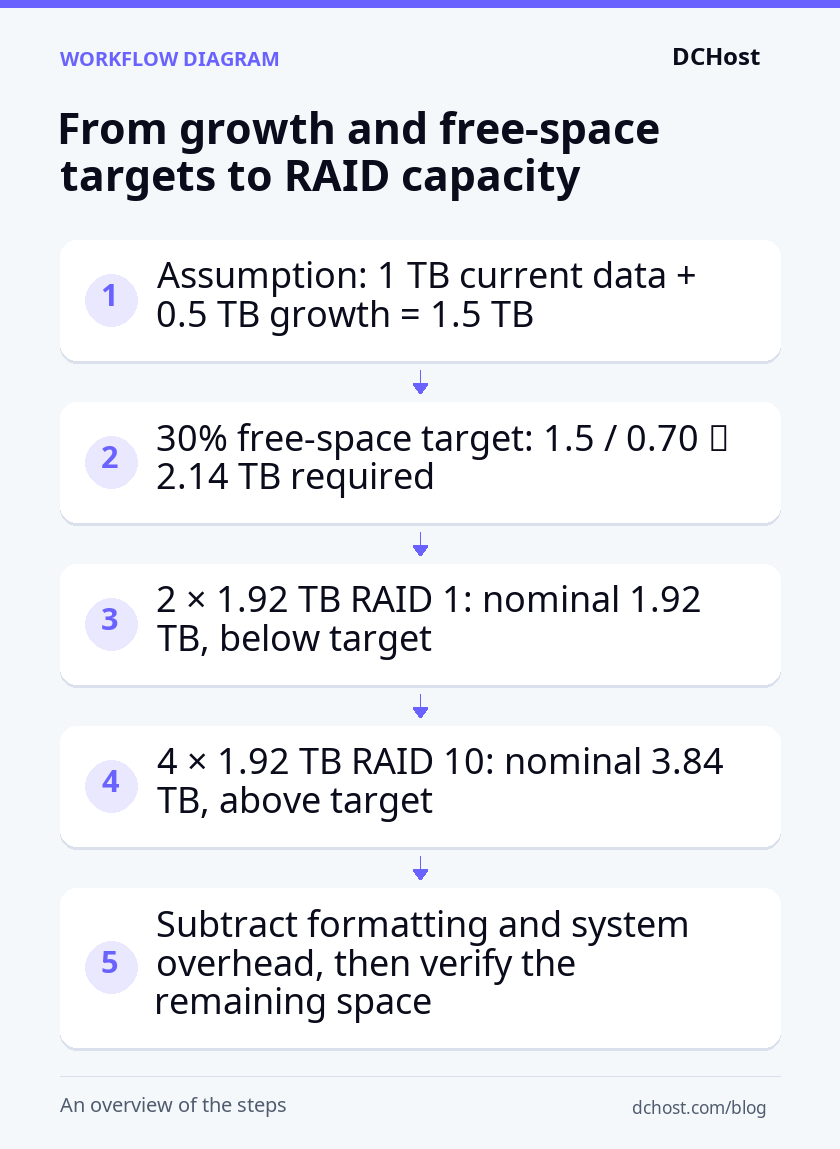
In the hypothetical WooCommerce example, assume you have 1 TB of data today and expect another 0.5 TB over the next 12 months. These are planning assumptions, not measurements. To store the resulting 1.5 TB while keeping 30% of the space free, calculate:
Required capacity = 1.5 / 0.70 ≈ 2.14 TB. Divide by 0.70 because you want the data to occupy only 70% of the available space. Simply adding 30% to your data size would not leave 30% free.
The projected 1.5 TB of data fits within the example RAID 1 array’s nominal 1.92 TB, but that layout does not meet the free-space target even before system and formatting deductions. RAID 10’s nominal 3.84 TB exceeds the required 2.14 TB. To confirm it meets your needs, ask for the capacity remaining after those deductions and compare it with the 2.14 TB target.
Free space leaves room for database temporary files, logs and additional files created during updates. The 30% figure is a planning choice for this example, not a required threshold for every server. Use your current usage and expected growth to make the same calculation for your own server.
TB and TiB express the same capacity with different numbers
TB on a disk label means decimal terabytes; TiB, which you may see in your operating system, means binary-based tebibytes. These units count bytes differently: 1.92 TB is approximately 1.75 TiB, and 3.84 TB is approximately 3.49 TiB. The smaller number does not mean space has disappeared.
When comparing a quote with the server’s capacity report, first express both values in the same unit. Then account separately for space used by the filesystem-the structure that organizes files on disk-and the operating system. This separates a difference in units from space that is actually unavailable for your data.
Compare costs beyond the disk count
Do not assume the four-disk option will double the total server price. To compare quotes on the same basis, ask the provider to itemize:
- The disks’ contribution to the monthly price and any one-time setup fee.
- The required drive bays, the server chassis that houses them and, if applicable, the cost of a RAID controller-the hardware that manages the disk arrangement.
- The scope of disk replacement, RAID management and monitoring services.
- The work involved in migrating data as you grow, and the cost of backups stored independently of the server.
This helps you judge whether a lower monthly price could mean extra migration work and expense during your planned growth period. Empty drive bays do not guarantee that the existing array can be expanded easily. Ask the provider to document the supported expansion path in the quote, including whether it requires moving data to another storage location or taking the server offline for maintenance.
Will your workload benefit from RAID 10?
If your store slows down during busy periods, more disks can help if waiting for disk operations is causing the slowdown. RAID 10 can distribute simultaneous reads and writes across multiple mirrored pairs. That does not mean an individual page or database query will become faster in proportion to the disk count. Check what your application is waiting for before paying for more disks.
WordPress and WooCommerce use disks differently
Page caching serves a saved copy of a prepared page, reducing the need for WordPress to generate it again for every visit. A content site serving cached pages may keep disk load low. Visitor numbers alone are therefore not a reason to choose RAID 10.
In WooCommerce, cart, checkout and account pages handle user-specific operations. In our hypothetical example scenario, recording orders, updating stock and querying products all use the same server’s disks. Image uploads and log writes add to the demand for simultaneous reads and writes.
In RAID 1, reads may be shared between the two disks, depending on the hardware or software managing RAID; every write is applied to both copies. In RAID 10, operations involving different data blocks can be distributed across mirrored pairs. However, a database operation may be waiting for another operation to release a lock, which controls access to shared data. Adding disks does not remove that dependency or make those operations run in parallel.
Assess disk technology and latency separately
Latency is the time a disk request takes to complete. Handling many requests at once and completing an individual request quickly are different capabilities. Using identical-model SATA SSDs in our example keeps disk technology constant while you compare disk counts and RAID layouts. This is a planning comparison, not a performance test. Moving to RAID 10 does not eliminate the disks’ own latency.
Assess disk technology separately: SATA and NVMe SSDs use different connection technologies, while HDDs store data on spinning magnetic disks. RAID levels alone do not provide a performance ranking. The performance you get depends on the disk model, the hardware or software managing RAID, and how your application accesses data.
Consider both peak demand and rebuild load
Before deciding, open your current server’s monitoring dashboard and select the time range when your store slowed down. For that same period, compare disk latency, queue length, CPU usage and memory usage. Queue length indicates how many disk requests are waiting or being processed. If disk latency and queue length rise together without clear pressure on CPU or memory, the disks may be limiting performance. This is a useful lead, not a diagnosis on its own.
Next, review the database’s slow query logs for the same period, if logging was enabled. These logs identify database requests that took longer than the configured time limit. For long-running queries, examine the query plan-the steps the database uses to retrieve data-and its use of indexes, structures that help locate data efficiently. Check the database’s transaction and lock monitoring information to see whether queries were waiting for access to shared data rather than disk operations.
Use those findings to choose a targeted change rather than changing RAID first. Before changing database indexes or application queries, take a restorable database backup, save the existing definitions or code, and plan how to reverse the change. Afterward, compare query times and disk waits under a similar load. Look for improvement in the specific delay you identified; if it persists, reassess the cause before making further changes.
A rebuild after disk replacement also uses disk resources needed by your application. In RAID 10, the unaffected mirrored pair can continue handling its share of the work, but copying within the affected pair and load on shared connections may increase latency. Do not assess the setup solely while the array is healthy and idle. Ask the provider to explain expected behavior under normal load and during a rebuild, including the disk model, workload and rebuild settings on which that assessment is based.
Complete your RAID selection from quote to delivery
Turn your requirements into a written reason for your choice
Include your current data size, expected growth, free-space target and any observed disk waits during busy periods in your quote request. Also specify how much service downtime you can accept. These details help the provider assess both the capacity you need and the response required after a failure.
In this hypothetical Example scenario, where WooCommerce files and the database share one server, the planning assumptions require approximately 2.14 TB. Of the two options compared, RAID 10 with 4 × 1.92 TB SATA SSDs meets that target before formatting and system allocations. The choice is based on capacity, not a measured speed gain: RAID 1 with 2 × 1.92 TB disks falls short of the free-space target. Specify four identical-model disks in a classic, two-copy RAID 10 layout, with A/B and C/D as mirrored pairs. Ask the provider to confirm that enough space will remain for your target after system allocations.
Ask the provider to clarify management responsibilities
Once you have chosen the disk layout, establish who will maintain it. Ask the following questions separately in your quote correspondence. An answer of “RAID is supported” does not explain who takes action when a disk fails.
- Will RAID be managed by a dedicated hardware controller or operating system software? What controller model or software and version will be used?
- Which disks will hold the operating system, and how will the server remain able to boot after a single disk failure?
- Who receives disk failure alerts, who initiates disk replacement, and who monitors the rebuild through to completion?
- What service coverage and response terms apply to failed disk replacement? How will a suitable replacement disk be made available?
Evaluate these answers alongside your server monitoring and alerting arrangements. An alert needs a named recipient and someone responsible for requesting a replacement; otherwise, a detected failure may not lead to action.
Verify capacity and array membership at delivery
Before migrating live data, ask the provider for a dated RAID status report from your server. For hardware RAID, request the controller’s management report; for software RAID, request the operating system’s array status output. Also request a partition and filesystem report showing how the usable space is allocated. Compare these reports with your quote and delivery record:
- The models and capacities of all four physical disks should match the quote. Their serial numbers should match across the delivery record and RAID status report.
- The RAID level, member disks and mirror layout should show the agreed four-disk RAID 10 arrangement, with A/B and C/D as mirrored pairs.
- The array should be healthy, with all expected members present and initial synchronization-the process that brings the mirrored copies into agreement-complete.
- The partition and filesystem report should show the capacity available for your data after system allocations. Compare that capacity with the example’s approximately 2.14 TB requirement, using the same units.
If the capacity appears too small, first ask the provider to check the report’s TB/TiB units and system allocations. If the layout differs from the order, ask which mirrored pair each disk belongs to. If initial synchronization is still running, wait for it to finish before accepting the array as ready for migration.
After a correction or completed synchronization, obtain updated reports and repeat the same comparisons. Keep live data on your existing system until these checks pass. This delivery check only requires reading status information; do not remove disks or recreate the array to perform it.
Compare alternatives against the same requirements
RAID 1 with two higher-capacity disks may also meet your space target. Request a separate quote using the same growth and free-space requirements, and compare the disk models and suitability for your workload rather than RAID level alone.
If you need service to continue when the entire server fails, comparing high availability versus a single server is a more appropriate next step. RAID 10 alone does not keep your service running after the loss of the whole server.
Frequently Asked Questions
Can you migrate from RAID 1 to RAID 10 later?
Sometimes, but simply adding two disks does not convert RAID 1 to RAID 10. Some RAID controllers and software RAID implementations support migration while preserving existing data. Ask your provider for written confirmation of the supported migration path for your controller model or RAID software version. If migration is not supported, you will need to copy the data to separate storage, recreate the array and restore the data.
Before changing the array, test a restore from a backup stored independently of the server. Recreating the array erases its existing data. Schedule a maintenance window-a planned period for possible service downtime-and identify the environment and backup you will use to restore service if the migration fails.
Can you use disks of different capacities together?
Usually, yes, but you may not be able to use the extra space on the larger disks. In a conventional RAID layout with equally sized members, the smallest disk limits the capacity used on each disk. Replacing just one disk with a larger one is therefore usually insufficient to increase usable capacity. You must replace the required member disks and then follow the expansion procedure supported by your RAID controller or software.
Before buying a replacement disk, ask your provider to confirm its compatibility with your current RAID setup and explain the steps needed to increase capacity. Capacity alone is not enough: the disk’s connection type must also match the server and, where applicable, the RAID controller.
Does a hot spare increase usable capacity?
No. A hot spare is a standby disk connected to the server that can automatically take over the role of a failed array member. Adding one to the example’s four-member RAID 10 array makes it a fifth disk; it does not increase the space available for your data. The disk must have sufficient capacity, be compatible with the setup and be assigned as a spare for that array in the RAID management settings.
A hot spare can let rebuilding start without waiting for a physical disk replacement. The lost protection is not fully restored until the rebuild finishes, however. It is also not an independent backup: it does not preserve earlier versions of your files or database.
Can you use RAID with NVMe disks?
Yes. NVMe is a protocol that lets SSDs communicate over PCIe, a high-speed connection to the server; it is not a RAID level. You can use NVMe disks with software RAID or a compatible hardware RAID controller. A controller that supports SATA disks does not necessarily support NVMe disks.
In your quote request, ask how the NVMe disks will connect to the server, which hardware or software will manage RAID, and whether the intended operating system version supports booting from that arrangement. These answers let you check that the complete setup-not just the disks-meets your needs.
Final checklist before you order
Before confirming your order, review the quote and service terms against the questions below. Ask your provider to clarify any gaps before payment, and get the answers in writing.
- Capacity: After space for the operating system and formatting overhead is deducted, will enough usable space remain for your expected growth and free-space target?
- Disk layout: Are the disk count, models, capacities, RAID level and mirrored pairs documented?
- Management: Does the quote identify the hardware or software managing RAID, who is responsible for maintenance and which RAID status report you will receive at delivery?
- Monitoring: Is it clear who receives disk failure alerts, who initiates a replacement request and who monitors the rebuild through to completion?
- Backup recovery: Have you established where backups independent of the server will be stored, how long they will be kept and who will perform a restore test?
- Failure response: Are disk replacement coverage, response terms, replacement part availability and any additional charges explained?
Request a written quote covering these points for your chosen disk layout. Use it as your delivery checklist: before migrating live data, compare the supplied usable capacity, RAID member disks and service coverage with what was agreed.