
Quick summary
If your SSL private key is exposed, deleting it or renewing the certificate is not enough. Restrict access to the exposed file, obtain a certificate with a new key, and revoke the certificates that use the exposed key-ask their issuer to mark them as no longer valid.
- Preserve records showing when and where exposure occurred.
- Verify that the replacement uses a different key.
- Prioritize immediate revocation during active misuse, even if it disrupts access to your site.
- Check the deployed certificate from outside your server’s network and fix what allowed the exposure.
Your private key is the secret your server uses to prove its identity over HTTPS. If it reaches a Git repository, support ticket or public directory, deleting it cannot invalidate downloaded copies. A browser showing a secure connection does not prove the key remains private.
You will identify affected certificates, deploy a new key and certificate, and confirm revocation of the old certificates. The walkthrough follows an explicitly hypothetical example scenario using Ubuntu, the Nginx web server and Certbot, a tool that automates certificate requests and renewals. It assumes only the private key leaked to Git. If the server or certificate management account is also compromised, you need a trusted, clean environment and secure account access before replacing the key.
First response to an SSL private key compromise
Once you confirm that an SSL private key has been exposed, assume someone else may have copied it. Deleting the file limits further access; it does not invalidate copies already taken. Routine certificate renewal may also reuse the same key. Your goal is to switch to a new key and revoke the certificates tied to the exposed key. Revocation tells clients that the issuing certificate authority no longer considers those certificates valid.
Example scenario
In this hypothetical environment, you use Ubuntu 24.04 with the Nginx web server and Certbot to manage certificates. example.com and www.example.com point to the same server. There is no content delivery network (CDN), which would otherwise sit between visitors and your server. Ports 80 and 443 are open for HTTP and HTTPS, and you have sudo privileges to run administrative commands.
Only the private key has leaked to a Git repository, and no active misuse has been detected. The server and the ACME account-the account Certbot uses for automated certificate operations-are assumed to remain secure. If the server is compromised, generate the replacement key on a clean server instead. If the ACME account is compromised, secure or replace that account before requesting the replacement certificate.
Restrict access first and preserve incident evidence
In your Git hosting service’s repository settings, find the visibility or access controls and restrict access to authorized people. If the key is attached to a support ticket, ask for access to the attachment to be blocked. If it is in a web directory, move the file outside the web root-the directory whose files your web server makes available to visitors. Open the old file or attachment address in a browser where you are not signed in and confirm that it can no longer be read or downloaded.
Before cleaning the repository history, record the earliest exposure time you can establish, the file path, the relevant commit ID-the identifier for the recorded Git change-and any available access logs. Do not paste the key into another support ticket. This example assumes the current certificate is at the path below. In the server terminal, create an incident directory accessible only to the root administrator account and copy the old certificate into it:
sudo install -d -m 700 /root/ssl-incident
sudo cp -L /etc/letsencrypt/live/example.com/cert.pem /root/ssl-incident/old-cert.pem
When the commands finish without errors, the incident directory contains a copy of the old certificate. You will use this copy to identify the certificate when requesting revocation. It is not a rollback point for reusing the exposed key.
Different filenames do not mean the keys are different. With OpenSSL installed on the server, run the following commands in its terminal. Each produces a SHA-256 hash, a fingerprint you can compare: the first uses the public key derived from the private key, and the second uses the public key contained in the certificate. Neither command prints the private key itself:
sudo openssl pkey -in /etc/letsencrypt/live/example.com/privkey.pem -pubout -outform DER | openssl dgst -sha256
openssl x509 -in /etc/letsencrypt/live/example.com/cert.pem -pubkey -noout | openssl pkey -pubin -outform DER | openssl dgst -sha256
If every operation in both commands completes without errors, matching hashes show that the certificate matches this private key. A hash line alone does not prove that the check succeeded. If you see a file-reading or permission error, resolve access to the specified file and rerun the check before comparing outputs. Use administrative privileges where needed rather than making the files more widely readable.
For each other existing certificate, replace the certificate path in the second command and compare its resulting hash with the first command’s hash. Review these findings alongside your certificate provider’s records. List the unexpired certificates that use the exposed key and the servers where they are installed. Include certificates from before the latest renewal: obtaining a new certificate does not mean the previous one has expired or been revoked.
Decide how urgently to revoke
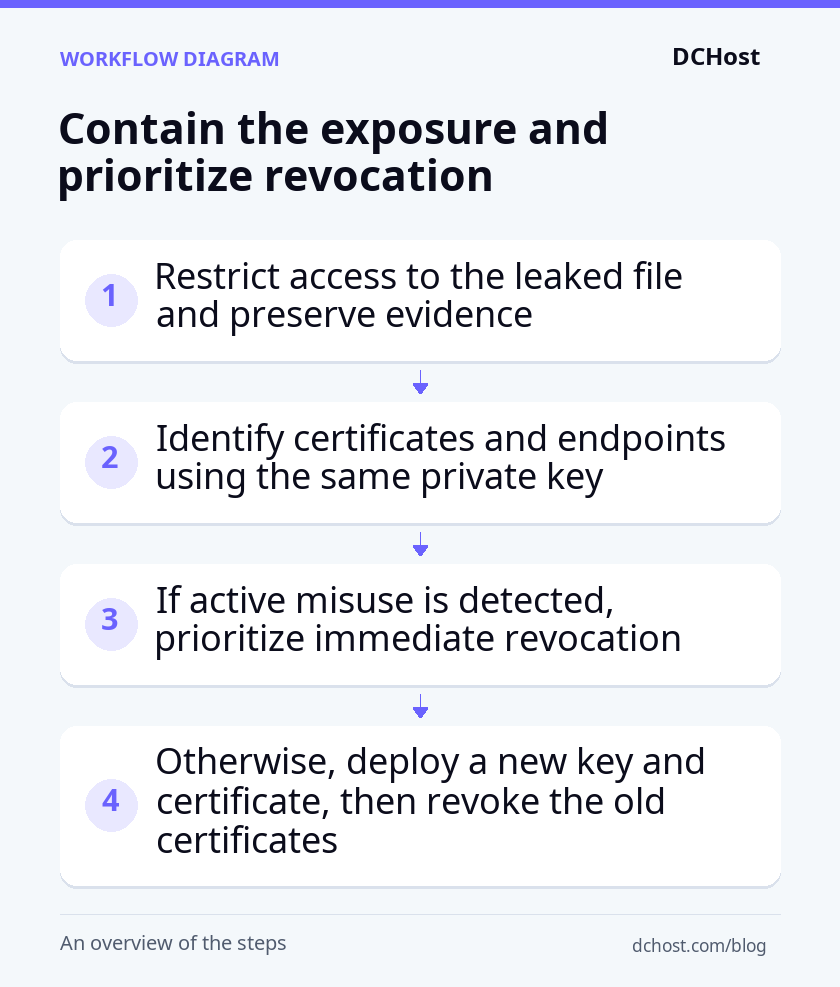
If there are no signs of active misuse, promptly prepare and deploy a new key and certificate, then revoke the old certificates without delay. Deploying the replacement first reduces the risk of certificate errors for visitors. Keep this transition short: until you switch, your site still relies on the exposed key.
If there is active misuse, prioritize the revocation request without waiting for the replacement setup. Use the revocation process provided by the issuing certificate authority-the organization that issued your certificate-and select keyCompromise as the reason. Revocation may disrupt access to the site while it still serves the old certificate. Browsers and other clients check revocation differently, so it does not guarantee that misuse stops immediately everywhere. After submitting the request, complete the switch to the new key and certificate.
Generate a new private key and certificate in a clean environment
In this hypothetical example, the server and the ACME account used for automated certificate operations remain secure, so you can generate the new key on the same Ubuntu server. Connect to the server through SSH with sudo privileges. You will create a separate Certbot record for the replacement certificate, allowing you to prepare the files without changing the certificate paths Nginx currently uses.
Install the tools and save the current settings
The example uses Ubuntu 24.04, with Nginx already serving the site and Certbot installed through Ubuntu packages. Certbot requests the certificate, OpenSSL compares keys, and the remaining tools check DNS and connectivity. Run the following commands in the server terminal to install the tools, save a copy of the site configuration in the root-only incident directory, and list Certbot’s existing certificates. Keep this configuration copy so you can undo preparation changes if needed:
sudo apt update
sudo apt install certbot openssl dnsutils curl
sudo install -d -m 700 /root/ssl-incident
sudo cp -a /etc/nginx/sites-available/example.com /root/ssl-incident/example.com.nginx.before
sudo certbot certificates
The last command should list the old example.com record. The new name, example-com-incident, must not already appear. If it does, stop and identify which certificate it belongs to and where it is used. This check prevents you from accidentally changing an existing certificate record.
Prepare DNS and HTTP validation
In your DNS management panel, check that the A records for both domain names point to this server’s public IPv4 address. If an AAAA record exists, it publishes an IPv6 address, and the same site must be reachable at that address too. Run the first four commands below to inspect the DNS responses. If a record is wrong, save its current value so you can undo the change, then correct it in the panel. Wait until the responses show the intended addresses before requesting the certificate.
The last two commands create the directory for domain-validation files and open the Nginx site configuration in the nano text editor. If nano is not installed, install it through Ubuntu’s package manager before running the final command:
dig +short example.com A
dig +short example.com AAAA
dig +short www.example.com A
dig +short www.example.com AAAA
sudo install -d -m 755 /var/www/acme/.well-known/acme-challenge
sudo nano /etc/nginx/sites-available/example.com
HTTP-01 validation lets Let’s Encrypt confirm that you control a domain by reading a temporary file through its website. Port 80 must be reachable from the internet for this check. In the configuration file you opened, add the following section to the listen 80 server block that handles both domain names. A server block contains Nginx settings for a site; the section below tells it where to find validation files. Here, root sets the base directory used to locate those files:
location ^~ /.well-known/acme-challenge/ {
    root /var/www/acme;
    default_type text/plain;
    try_files $uri =404;
}
If the server block has a return directive that redirects to HTTPS outside its location sections, that redirect also applies to validation requests. To serve the file directly over HTTP, move that redirect into the existing location / section; do not create a second location /. Save the file in nano with Ctrl+O, press Enter to confirm the filename, and exit with Ctrl+X.
Run the following commands to test the configuration, reload Nginx only if the test passes, and create a temporary file for checking external access:
sudo nginx -t && sudo systemctl reload nginx
printf 'acme-ok\n' | sudo tee /var/www/acme/.well-known/acme-challenge/probe
The configuration test should report that its syntax is OK and the test is successful. If it fails, the reload command will not run. Correct the reported line before continuing. To undo the preparation changes, copy example.com.nginx.before from the incident directory back over the original site configuration file, then repeat the test-and-reload command. This restores the earlier configuration only; it does not make the exposed key safe to use.
Next, run these two commands in a terminal on a computer with curl installed, using another internet connection. Both should return acme-ok. That response confirms that each domain is reachable from outside the server and that Nginx serves the test file from the directory prepared for validation. If either request fails, resolve that access problem before requesting the certificate:
curl --fail example.com/.well-known/acme-challenge/probe
curl --fail www.example.com/.well-known/acme-challenge/probe
Create a separate record and verify that the key changed
Once both addresses return the expected response, return to the server terminal. The following command requests a certificate for both domain names using the web root you prepared. If prompted, enter an email address you monitor and review the terms of service. --duplicate allows a separate Certbot record for the same domain names; certonly obtains the certificate without changing Nginx’s certificate paths. The new record is named example-com-incident. The command below spans three lines; join them with spaces before running it:
sudo certbot certonly --webroot -w /var/www/acme
  --cert-name example-com-incident --duplicate
  -d example.com -d www.example.com
Run the command above as a single line in the terminal. On success, Certbot should report the new files under /etc/letsencrypt/live/example-com-incident/. If the request fails, resolve the reported error before continuing. Next, compare the SHA-256 hashes of the old certificate’s public key and the public key derived from the new private key. The first two commands display these hashes; the last removes the temporary access test file:
sudo openssl x509 -in /root/ssl-incident/old-cert.pem -pubkey -noout | openssl pkey -pubin -outform DER | openssl dgst -sha256
sudo openssl pkey -in /etc/letsencrypt/live/example-com-incident/privkey.pem -pubout -outform DER | openssl dgst -sha256
sudo rm /var/www/acme/.well-known/acme-challenge/probe
Every operation in the first two commands must complete without errors, and the hashes must be different. A hash can still appear after a file-reading or key-processing error, so resolve any such error and rerun the comparison. Different hashes from successful commands confirm that the old key was not reused. If the hashes match, stop: the replacement must use a different key. Nginx still uses the old certificate paths at this point. Before changing them, you will check that the new certificate matches the new private key.
Deploy the new certificate and revoke compromised certificates
Check the key match and update Nginx paths
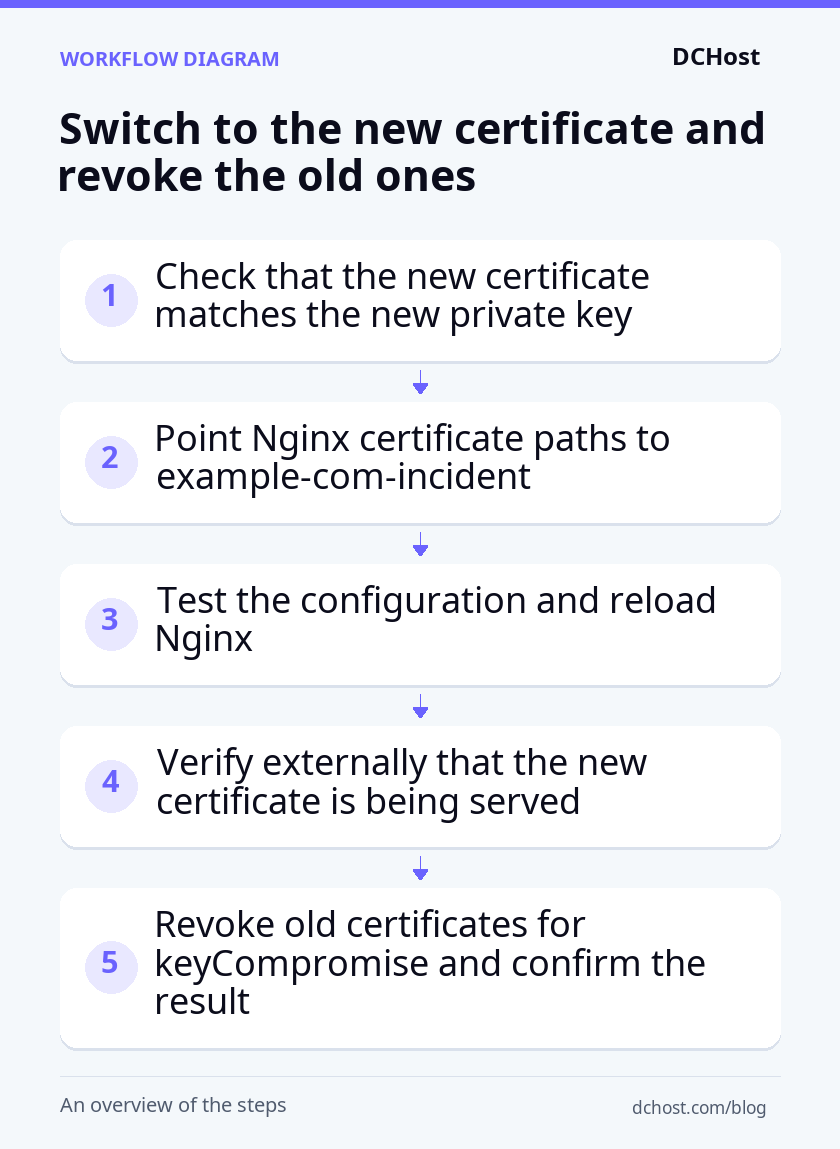
Before changing Nginx, check that the new certificate matches the new private key. Run the following commands in the server’s SSH terminal. Every operation must complete without errors, and both commands must return the same SHA-256 hash of the public key. If reading the certificate produces a permission error, run the check in a terminal with root privileges; do not broaden the file permissions.
openssl x509 -in /etc/letsencrypt/live/example-com-incident/cert.pem -pubkey -noout | openssl pkey -pubin -outform DER | openssl dgst -sha256
sudo openssl pkey -in /etc/letsencrypt/live/example-com-incident/privkey.pem -pubout -outform DER | openssl dgst -sha256
If the hashes differ, stop and check that both file paths belong to the certificate record you just created. Once the hashes match without errors, open the site configuration to update the paths Nginx uses:
sudo nano /etc/nginx/sites-available/example.comIn the blocks serving HTTPS for example.com and www.example.com, replace the two existing certificate lines with the following. ssl_certificate points to the chain file containing your server certificate and the intermediate certificates that connect it to a trusted certificate authority. ssl_certificate_key points to the private key. Replace the existing paths rather than adding another pair beside the old lines.
ssl_certificate /etc/letsencrypt/live/example-com-incident/fullchain.pem;
ssl_certificate_key /etc/letsencrypt/live/example-com-incident/privkey.pem;
In nano, save with Ctrl+O, press Enter to confirm the filename, and exit with Ctrl+X. Then run the following command on the server. It tests the Nginx configuration and reloads the running service only if the test succeeds:
sudo nginx -t && sudo systemctl reload nginxThe test should report syntax is ok and test is successful. If it reports an error, the reload does not run, and Nginx continues serving with its previously loaded configuration. Correct the reported file or line and try again. Use the configuration backup from the previous section for comparison; do not redeploy the exposed key as a rollback. After the test passes, check that the reload also completes without errors before checking the certificate externally.
Verify the certificate served externally
A successful Nginx test alone does not prove that visitors receive the new certificate. First, run the following command on the server to obtain the new certificate’s fingerprint for comparison. Unlike the public key hash you checked earlier, this fingerprint identifies the entire certificate:
openssl x509 -in /etc/letsencrypt/live/example-com-incident/cert.pem -noout -fingerprint -sha256If the file cannot be read because of its permissions, repeat the check with root privileges rather than changing those permissions. Keep the resulting fingerprint for the external comparison.
Next, check both domain names from a Bash terminal on a computer with OpenSSL installed, using another internet connection. -servername tells the server which site’s certificate to present. The verification options check that the certificate matches the domain name and has a chain of trust leading to a trusted certificate authority. The checking computer’s store of trusted root certificates must be up to date.
set -o pipefail
for host in example.com www.example.com; do
  printf '\n%s\n' "$host"
  openssl s_client -connect "${host}:443" -servername "$host" -verify_hostname "$host" -verify_return_error </dev/null | openssl x509 -noout -fingerprint -sha256
done
For each domain, the displayed fingerprint must match the value obtained on the server, and the connection must complete without verification errors. Inspect the error output for both connections; a printed fingerprint alone does not establish that verification passed. If both IPv4 and IPv6 are published, repeat the checks with -4 and then -6 added to the s_client command. Both connection paths must serve the new certificate and pass verification.
Revoke old certificates because of the exposed key
In this hypothetical example scenario, no active misuse has been detected, so submit the revocation request for the old certificate immediately after verifying the new certificate externally. Run the following command in the server’s SSH terminal. It identifies the certificate to revoke using the copy you saved in the incident directory. keycompromise is the revocation reason that reports an exposed private key:
sudo certbot revoke --cert-path /root/ssl-incident/old-cert.pem --reason keycompromise --no-delete-after-revokeThe request is authorized through the existing ACME account-the account used to manage automated certificate operations-which is assumed to remain secure in this example. The --no-delete-after-revoke option keeps the local certificate record after revocation. Keeping or deleting local files does not change the certificate’s revocation status. Repeat the operation for every other unexpired certificate tied to the exposed key, using the corresponding certificate file and the issuing authority’s revocation process for each.
Certbot should report that revocation succeeded. If it reports an error or the response is unclear, inspect /var/log/letsencrypt/letsencrypt.log for details and, if necessary, seek confirmation through the issuing certificate authority’s revocation channel. Save the success response in your incident record. The browser’s padlock icon does not prove that the old certificate has been revoked; browsers and other clients differ in how they check and enforce revocation information.
Troubleshoot the setup and prevent another exposure
Distinguish stale certificates from validation errors
If the external check shows the old certificate and your domains publish both IPv4 and IPv6 addresses, compare the results for each connection path first. If only one serves the old certificate, its DNS record may point to another server. If both show the old certificate, inspect the configuration Nginx reads and its reload logs. Run these commands in the Ubuntu server’s SSH terminal:
sudo nginx -T 2>&1 | grep -E 'server_name|ssl_certificate'
sudo journalctl -u nginx -n 30 --no-pager
The domain’s HTTPS block should use the example-com-incident paths. The first command displays domain names and certificate settings; the second shows recent Nginx service logs, where you can look for reload failures. If you find an incorrect path or a conflicting block handling the same domain, save a copy of the current site configuration and correct only the relevant setting. Then run sudo nginx -t && sudo systemctl reload nginx and repeat the external fingerprint check. The served fingerprint should now match the new certificate, confirming that visitors receive it.
If domain validation fails, recreate the probe file from the earlier section and request its address through both domain names from outside the server. A 404 response means the request reached a web server but the validation file was not served; inspect the web root, the server block handling the request, and redirects. For a timeout, check DNS responses, the firewall, and access to port 80. Correct the setting indicated by these checks, then confirm that both addresses return the expected file contents before repeating the certificate request.
Correct key permissions without broadening access
If Nginx reports a Permission denied error when reading the new key, first inspect its symbolic link-the reference that points to the actual key file-and the permissions on each directory in that path. Run these commands on the server to inspect the path and the account configured to start the Nginx service:
sudo namei -l /etc/letsencrypt/live/example-com-incident/privkey.pem
sudo systemctl show nginx -p User
In the standard Ubuntu Nginx service used here, the main process starts as root; an empty User= field is expected. This main process reads the certificate and key, so you do not need to grant the www-data user access to the key. If the output shows incorrect ownership or file permissions for the new key, record the current values in the incident log before changing them. The following commands set ownership and permissions on this key’s target file, then test whether Nginx can load its configuration:
sudo chown root:root /etc/letsencrypt/live/example-com-incident/privkey.pem
sudo chmod 600 /etc/letsencrypt/live/example-com-incident/privkey.pem
sudo nginx -t
These settings allow only root to read and write the key. A successful Nginx test confirms that the configuration can load with these permissions; apply the pending change using the earlier test-and-reload step. If the test still fails, inspect the exact path in the error message and the permissions on its parent directories. Use the recorded values to review any change you need to undo, but do not restore permissions that expose the key. Correct the affected file or directory rather than granting access across the entire /etc/letsencrypt tree.
Test renewal and reloading together
A working certificate today does not prove that its next renewal will succeed. In the server’s SSH terminal, run a test renewal for the new record, then check the Certbot timer. This timer schedules automatic renewal checks and is installed by the Ubuntu package used in this example:
sudo certbot renew --cert-name example-com-incident --dry-run
sudo systemctl status certbot.timer --no-pager
--dry-run tests the renewal process without changing the live certificate; the output should report a successful test. If the timer is inactive, run sudo systemctl enable --now certbot.timer and use the status command to confirm that it is active.
Next, add a deploy hook-a script that runs after a successful renewal-so Nginx reads the renewed files. The commands below create reload-nginx.sh in Certbot’s deploy-hook directory. If that file already exists, copy it to the protected incident directory and inspect its contents first. The commands overwrite it, so retain any other required operations rather than replacing the file blindly. If your changes cause problems, restore the saved script; this does not require returning to the exposed key.
sudo install -d -m 755 /etc/letsencrypt/renewal-hooks/deploy
sudo tee /etc/letsencrypt/renewal-hooks/deploy/reload-nginx.sh >/dev/null <<'EOF'
#!/bin/sh
/usr/sbin/nginx -t && /usr/bin/systemctl reload nginx
EOF
sudo chmod 750 /etc/letsencrypt/renewal-hooks/deploy/reload-nginx.sh
sudo certbot renew --cert-name example-com-incident --dry-run --run-deploy-hooks
This second test runs the hook after a successful simulated renewal. The hook tests Nginx’s configuration and, if it passes, reloads Nginx with the current live certificate. Check the output for a successful renewal test and no hook errors. If the hook fails, correct the reported configuration or script error and repeat this test.
Before removing the old record, confirm that revocation succeeded and that no service, including Nginx, still uses the old certificate paths. Preserve the necessary incident records in the restricted directory, then use sudo certbot delete --cert-name example.com to remove the old Certbot record and its associated local certificate files. This does not replace revocation; it prevents the unused record from being renewed again.
Clean Git history and check other endpoints
Deleting the file from the latest commit-the latest recorded change-does not remove historical copies. Temporarily pause writes to the repository so new changes do not conflict with cleanup. Before rewriting history, preserve a copy in the restricted incident archive. This gives you a recovery copy if cleanup removes needed project data, but it may also contain the exposed key: do not share it like an ordinary project backup or restore it to the public repository.
Use git-filter-repo, a tool for rewriting Git history, to remove the file from every path it occupied in the past; cleaning only its current filename may miss earlier names. Follow your repository hosting service’s sensitive-data removal process to update branches and tags and address retained copies. Ask your team to clone the cleaned repository again so old history is not accidentally pushed back. You cannot retrieve every repository fork, cached copy, or downloaded file. History cleanup therefore does not replace key replacement and certificate revocation.
Do not put the new key in Git, a support ticket, or an application package. .gitignore is only an additional safeguard; it does not protect files Git already tracks. Follow the approach to managing secrets on a VPS: keep the key outside the web root and restrict access to the services that need it. Add a scan for secrets such as private keys and passwords before pushing to the repository to help prevent the same mistake from recurring.
The example scenario has no CDN, or content delivery network. If your CDN handles visitors’ HTTPS connections, the certificate presented to visitors and the certificate on the origin server-the server hosting your site-are managed separately. Replace and revoke certificates wherever the exposed key is used; if both sides use the same key, include both in the response. With Cloudflare’s Full (Strict) mode, the visitor-to-CDN and CDN-to-origin connections use separate TLS connections, and Cloudflare validates the origin certificate. That setting does not replace either side’s compromised key.
If you use cPanel or Plesk, install the new private key, certificate, and intermediate certificate chain together in the domain’s SSL/TLS management screen. The intermediate certificates connect your certificate to a trusted certificate authority. Reissuing a certificate alone may not change the key; regardless of provider, request the replacement using a new key. For a Let’s Encrypt wildcard certificate, which covers subdomains at the same level, you must use DNS-01 validation instead of HTTP-01. DNS-01 proves domain control through a DNS record. Account for this alternative validation process when choosing SSL certificate automation tools, and protect the DNS access keys used by automation as secrets.
Frequently Asked Questions
Can an exposed private key decrypt past HTTPS traffic?
Not necessarily. The answer depends on the key exchange method used to establish the connection. Forward secrecy protects past traffic by using temporary, session-specific keys, even if the certificate’s private key is exposed later. TLS is the protocol that secures HTTPS. Connections using TLS 1.3, and TLS 1.2 connections using temporary key exchange methods such as ECDHE, cannot be decrypted solely by obtaining the certificate’s private key.
If older TLS connections used RSA key exchange, an attacker could use the exposed key to decrypt previously recorded traffic. Having an RSA certificate alone does not establish this risk; the connection’s key exchange method is what matters. To assess past exposure, review the TLS settings from the incident period and any available connection logs. Today’s settings do not prove how past connections were established.
Should you also reset WordPress and customer passwords?
Not automatically. An SSL private key compromise alone does not show that WordPress passwords or the database were compromised. If the exposure is limited to one file, as in the hypothetical example scenario, and there is no other evidence of misuse, you do not necessarily need to require password resets for every user.
If the same repository also exposed a database password, access key, or signing secret used to verify sessions, replace each of those separately. If there is evidence of credentials being collected through a fake site, unauthorized server access, or the ability to decrypt traffic containing passwords, reset the affected accounts’ passwords and terminate their sessions. Base your decision on the data exposed and the scope of unauthorized access, not just the private key exposure.
Does sharing a CSR file expose your private key?
No. A CSR, or certificate signing request, contains the public key and certificate application details, not the private key. The private key cannot be extracted from a normal CSR. You may still prefer to keep the domain or organization details it contains out of public view.
Check the header line inside the file rather than trusting its extension. BEGIN CERTIFICATE REQUEST indicates a request, while BEGIN PRIVATE KEY or BEGIN RSA PRIVATE KEY indicates a private key. These are common header examples, not a complete list; a different header does not mean the file is safe to share. Before attaching a package to a support ticket, also check that it does not contain a private key file alongside the CSR.
Does enabling HSTS protect you against private key exposure?
No. HSTS, or HTTP Strict Transport Security, is a security policy that tells browsers to connect to your site only over HTTPS. It helps prevent connections from being downgraded to unencrypted HTTP; it neither replaces the private key nor revokes the certificate.
If an attacker can redirect visitors’ traffic to a server they control and use the exposed key with a certificate the browser still accepts, HSTS alone is not enough. Keep HSTS enabled to maintain your HTTPS connection policy, but do not treat it as a substitute for replacing the key and revoking the affected certificates.
Checklist before closing the incident
A site that opens without browser warnings does not, by itself, mean your response is complete. Check each item below before closing the incident record. Save verification outputs in the protected incident directory without including the private key.
- The new key is genuinely different: The public key fingerprints compared earlier differ between the old certificate and the new private key. The new certificate’s public key also matches the new private key. Together, these checks confirm that you replaced the exposed key and paired the new certificate with the correct key.
- Every address serves the correct certificate: External checks are complete for both
example.comandwww.example.com. If you publish both IPv4 and IPv6 addresses, you have tested both connection paths. The served certificate’s fingerprint matches the new certificate, and the hostname and certificate chain checks pass without errors. - Old certificates tied to the exposed key are revoked: For every identified, unexpired certificate using the exposed key, you have recorded a successful revocation response with
keyCompromiseas the reason. Removing a certificate from Nginx or deleting its old Certbot record does not count as revocation. - The exposure route is closed: You have removed the file and its historical copies from the Git repository and followed up with the repository hosting service on access restrictions and cache removal. Your incident record acknowledges that cleanup cannot retrieve previously downloaded copies. The new key is not in the Git repository, web root, or support attachments, and only authorized people can access the incident evidence.
- Renewal and reloading have been tested: The test renewal for
example-com-incidentsucceeds, the Certbot timer is active, and the script that reloads Nginx after renewal completes without errors. No active service or rollback plan depends on the exposed key.
If any check remains incomplete, keep it open in the incident record and assign an owner and target completion date. Track certificate replacement and the fix for the exposure route as separate tasks. Restoring HTTPS with a new key does not resolve the mistake that allowed the old key to leak.
Before closing the incident, establish how the key entered Git and address that cause. If a deployment script copies server keys into the project directory, remove that step. If the file was added accidentally, introduce a scan and review rule for secrets such as private keys and passwords before pushing to the repository. Check that the safeguard catches the original mistake without sharing the real key again, and document the change in the incident record.